
How To Use Output APIs
Create secure, shareable API endpoints from your datasets.
Output APIs let you turn any dataset into an API endpoint that external systems can query. This makes it easy to retrieve dataset information programmatically while keeping access secure through API tokens.
This guide walks you through creating Output APIs, generating and assigning tokens, testing your API, copying request code, and managing API settings.
1. Overview
Output APIs are used to expose dataset data through a secure API endpoint.
With Output APIs, you can:
Create a custom API from any dataset or dataset version
Configure the API name, description, method, and endpoint URL
Protect access using API tokens
Test requests inside DataPeak
Copy request/response code for use in external systems
Activate or deactivate APIs at any time
All Output API actions take place in the Data & Users section.
2. Creating an Output API
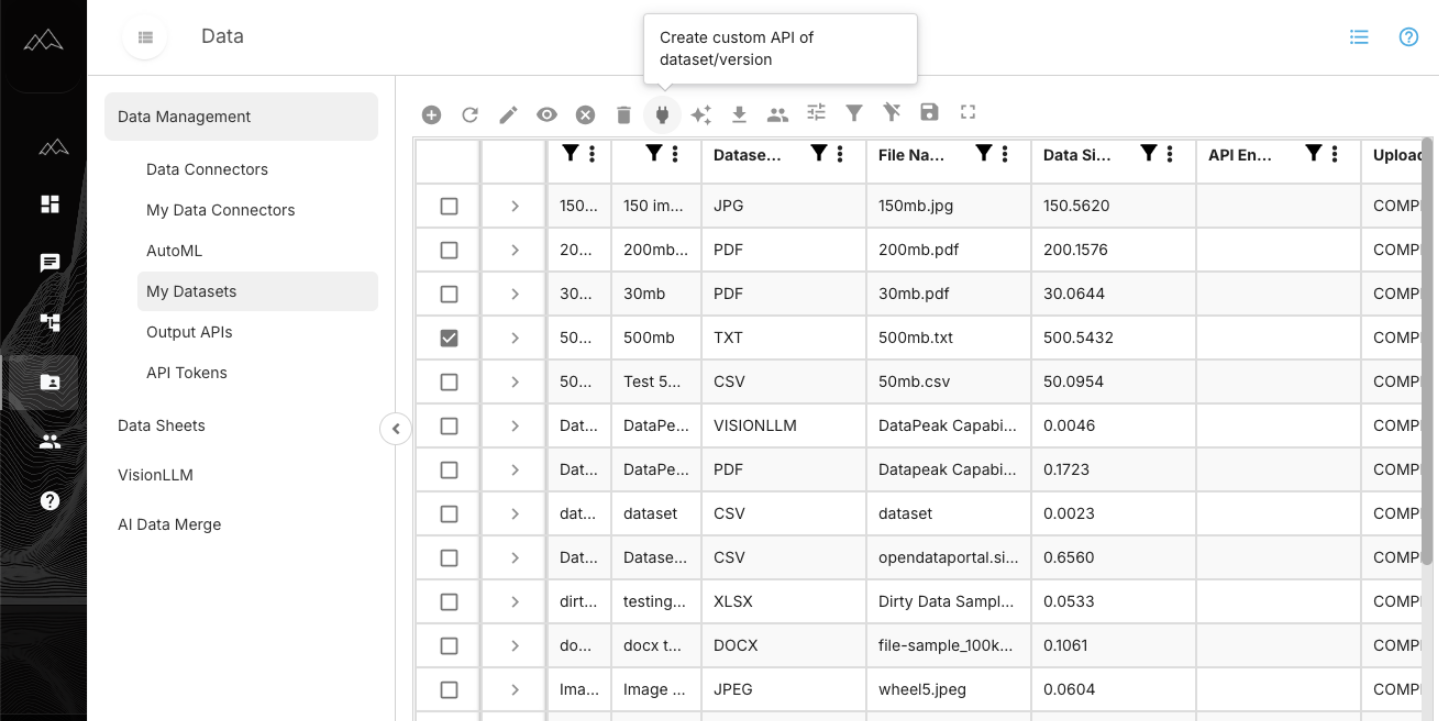
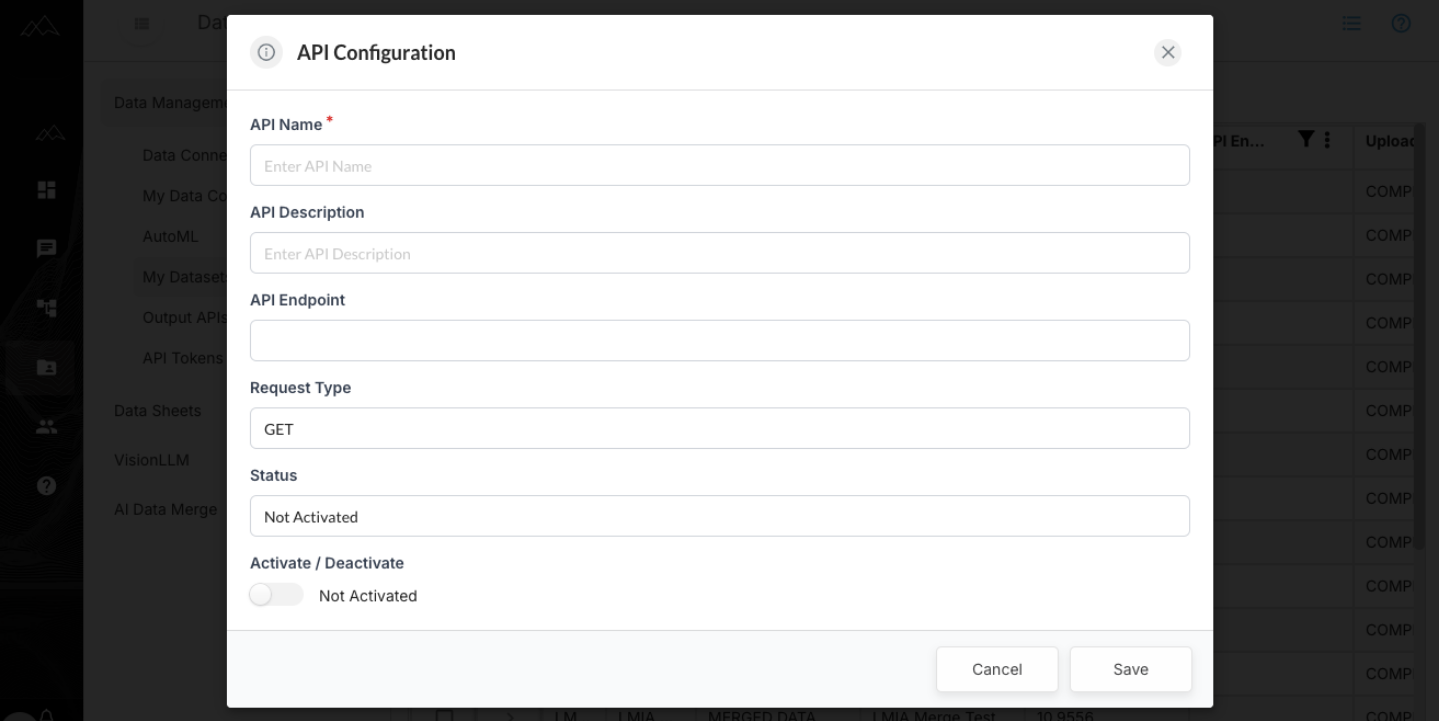
To create a new Output API:
Go to Data Management
Select MyDatasets
Choose your dataset
Click Create custom API of dataset/version
Enter the required details:
API Name — A clear, descriptive name (e.g., “sales order”).
Description — Explains the API’s purpose or what data it returns.
Endpoint URL / Path — The URL that applications will call.
Request Type — Select GET (retrieve data) or POST (send data).
Toggle the API On to activate it
Click Save
DataPeak will validate the API name and domain before saving.
3. API Tokens
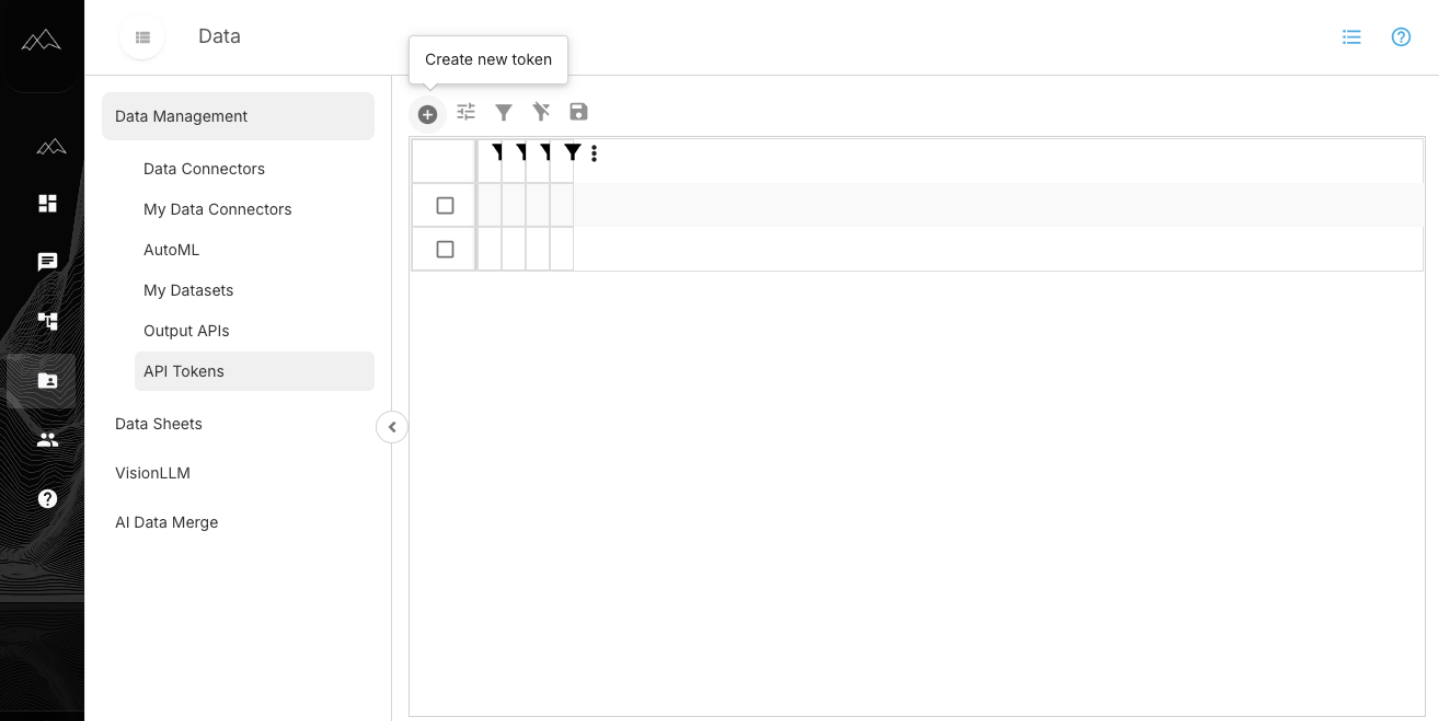
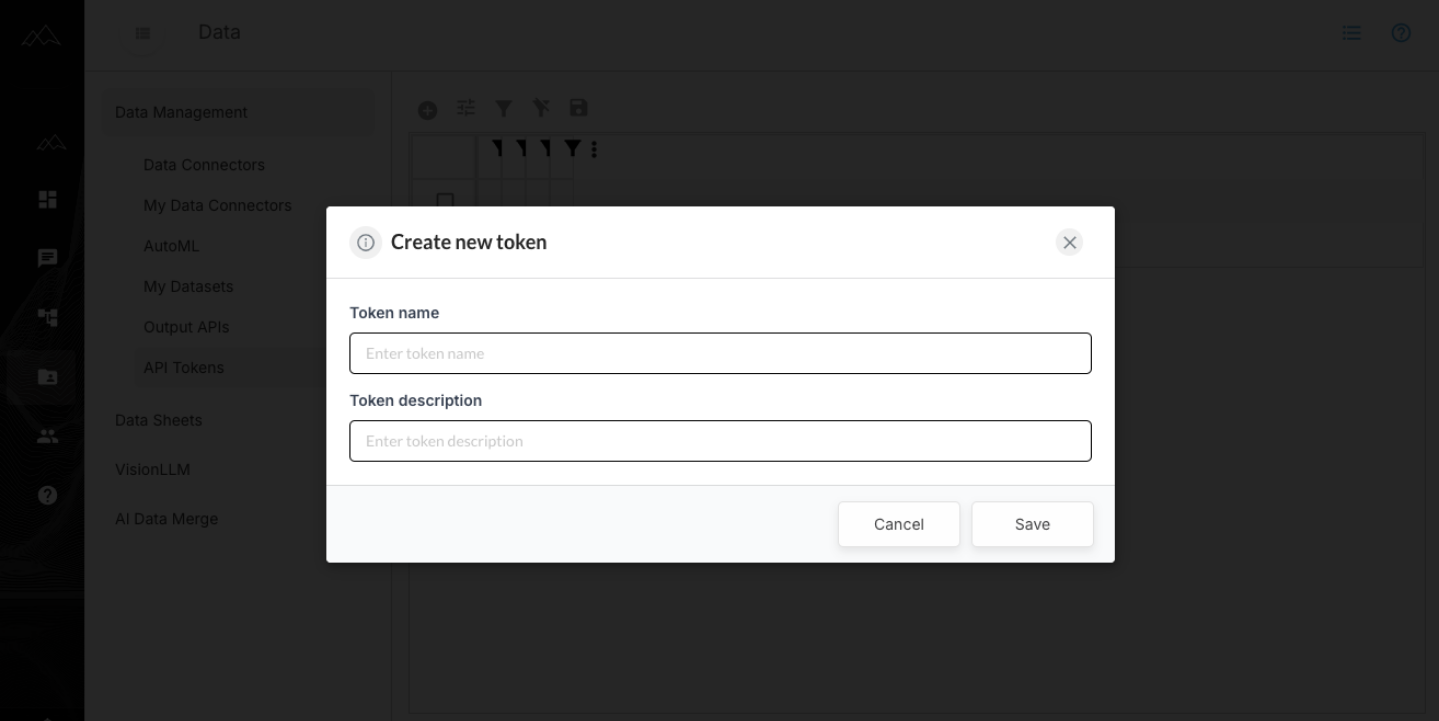
API tokens control access to Output APIs.
A token must be generated before testing or using an API.
Generating a New Token
Go to API Tokens
Click Create New Token
The new token appears in the field above the button
Copying the Token
Click the copy icon next to the generated token.
This token will be required for authenticated API requests.
4. Assigning Tokens to Your API
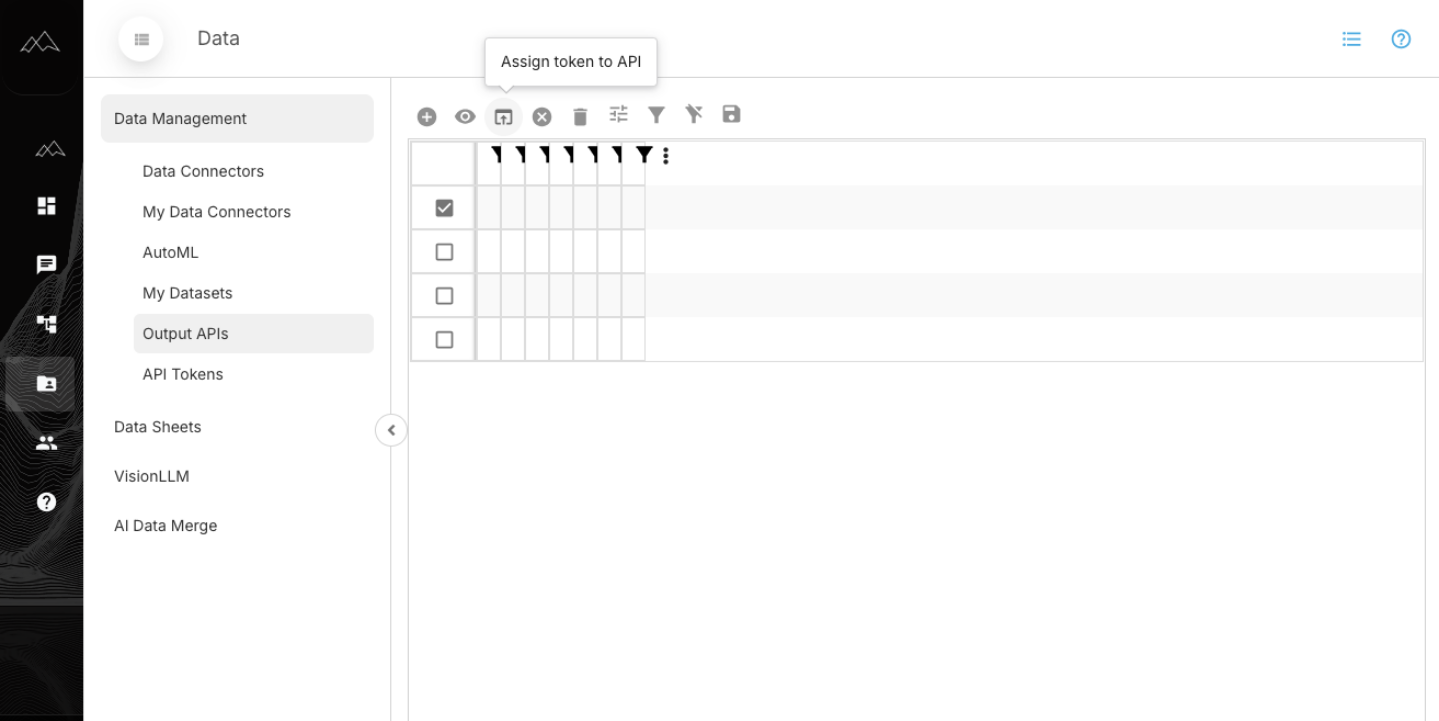
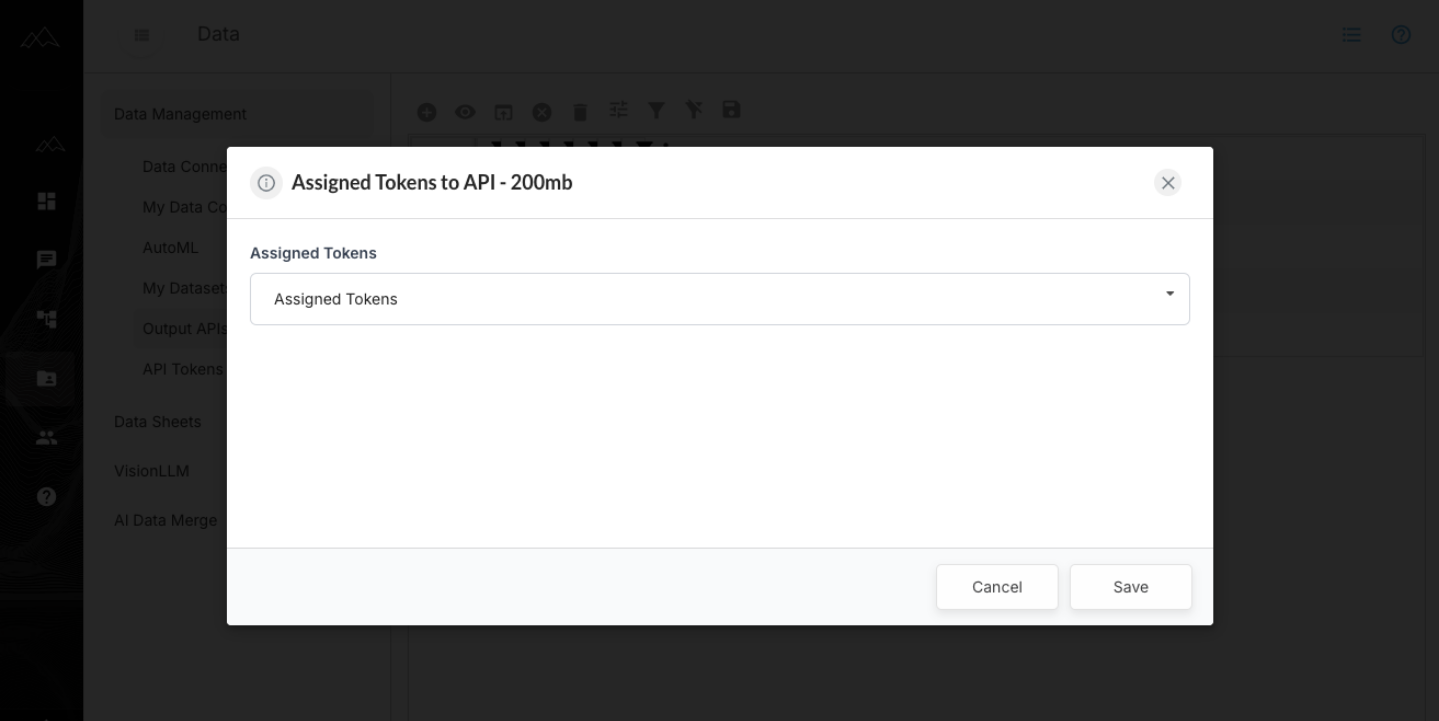
To enable your API to authenticate incoming requests:
Go to Data Management → Output API
Select the API you created
Choose Assign token to API
Pick a token from the dropdown
Save your changes
5. Testing the API
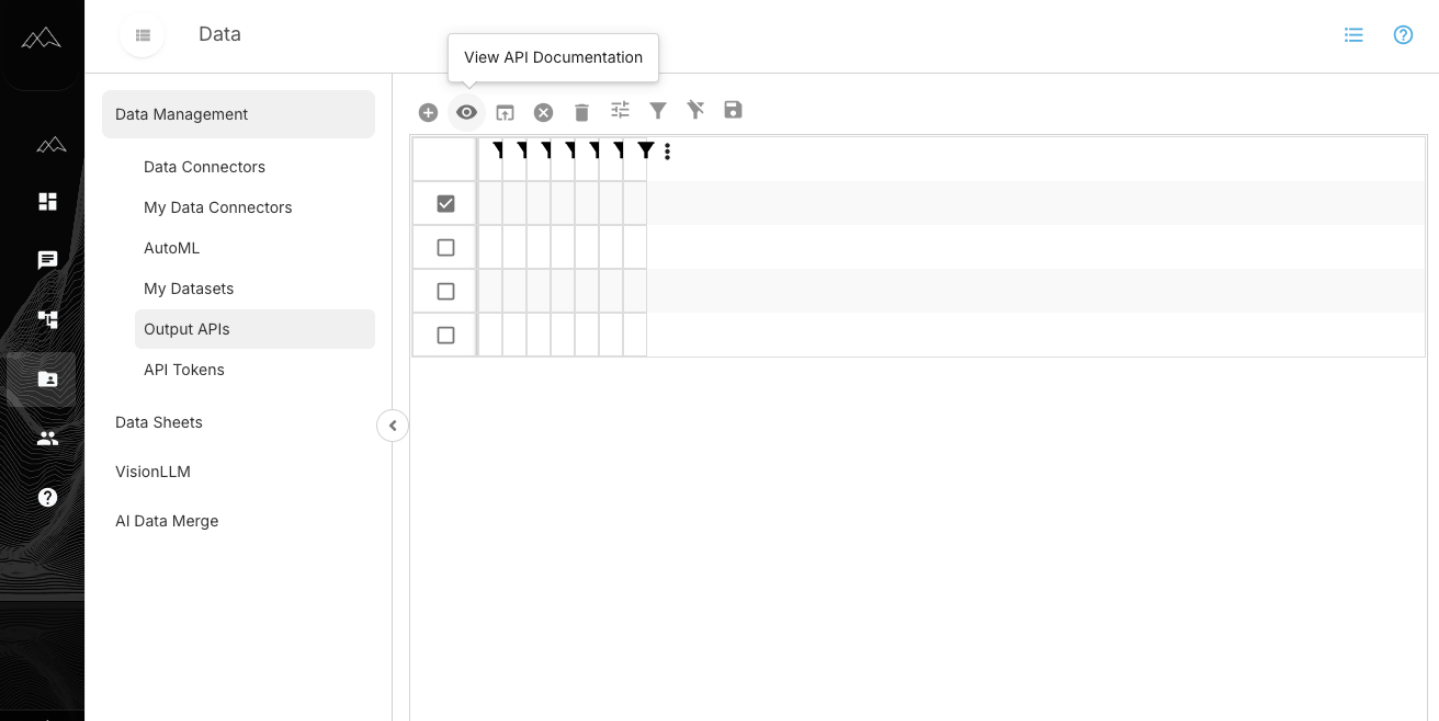
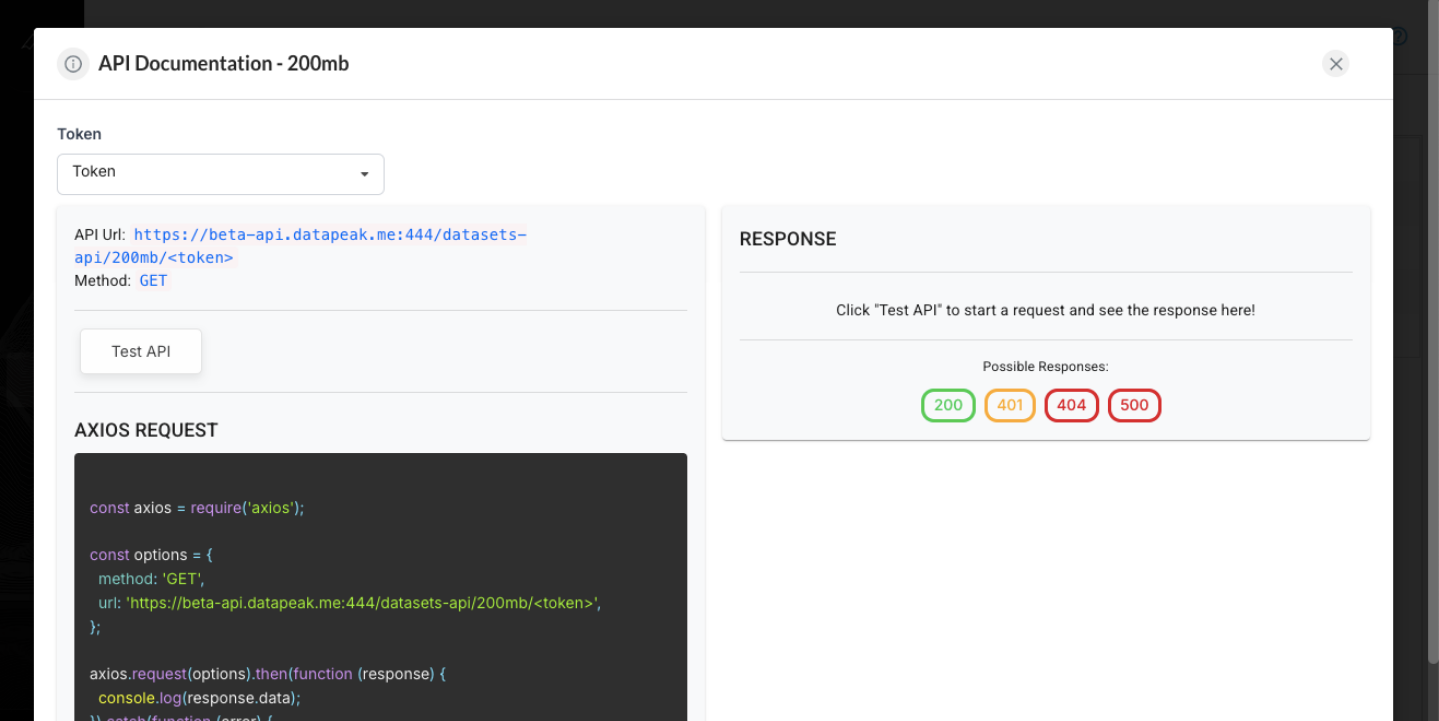
Once a token is assigned, you can test the API.
Go to Data Management → Output API
Select your API
Click View API Documentation
This displays the endpoint URL and request method
Click Test API
DataPeak automatically includes the token in the request header
View the JSON response on the right side
This response shows the dataset output returned by the API
6. Copying Request & Response Code
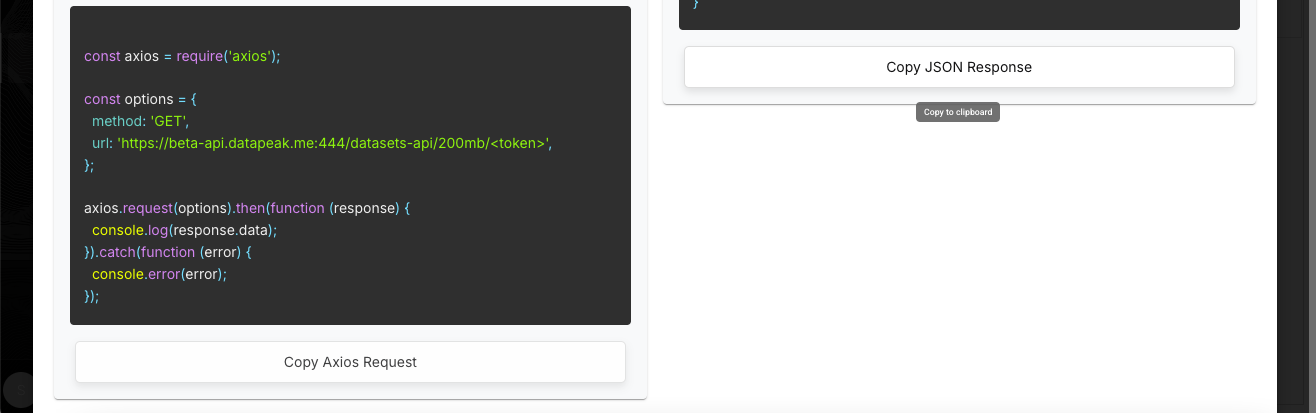
When viewing your API:
Axios Request
The AXIOS REQUEST section shows an example request using Axios in Node.js.
Click COPY AXIOS REQUEST to copy the code.
JSON Response
Use COPY JSON RESPONSE to copy the returned data payload.
This is useful for integrating the API into external applications.
7. Managing Your APIs
In the Output API area, you can:
Activate or deactivate APIs
Update API configuration
Assign or remove tokens
Generate additional tokens
These controls let you adjust data exposure and access as needed.
8. Viewing API Parameters
Each Output API displays:
API Name — Used to identify the API
API Endpoint — Automatically generated when the API is activated
Method — Pre-set to GET
Status — Shows if the API is Activated or Deactivated
Activate/Deactivate Toggle — Controls API availability