
How To Use DataPeak Data Management
Your central hub for connecting, storing, and managing data.
The Data Management area is where Admins and Sub Admins add datasets, connect external sources, and review the data powering agents, analytics, dashboards, and workflows.
This guide shows you how to access Data Management, explains each tab, and walks you through the most common actions, like adding data, reviewing datasets, running Auto Analytics, and creating Output APIs.
1. Before You Begin
Data Management is available only to:
Admin
Sub Admin
If you don’t see this section, contact your workspace administrator.
2. How to Open Data Management
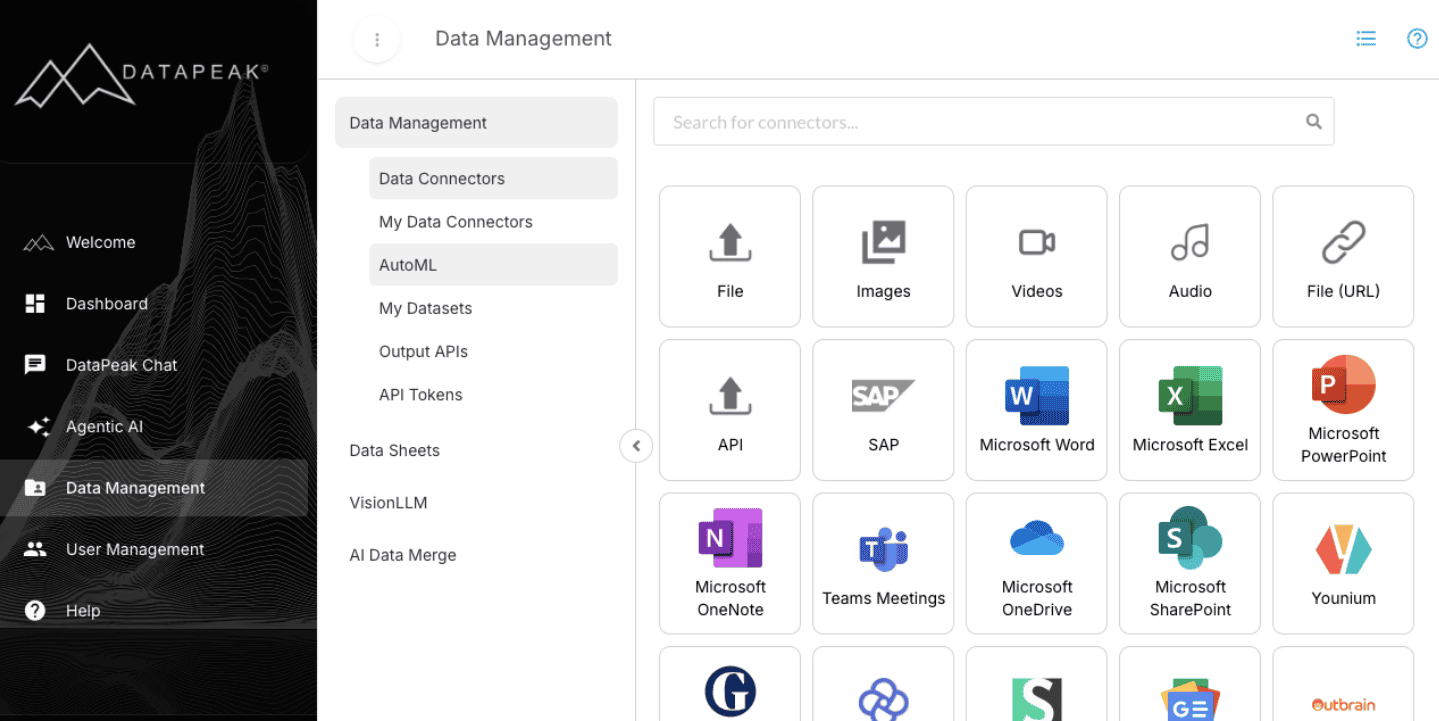
Sign into DataPeak.
Click Data Management in the left-hand menu.
You’ll see several tabs that help you manage every part of your data flow.
3. What You’ll See in Data Management
DataPeak organizes data tools into clear tabs:
Data Connectors
My Data Connectors
Datasets
Output APIs
API Tokens
Data Sheets
VisionLLM
AI Data Merge
Each tab has a specific purpose, described below.
4. Data Connectors
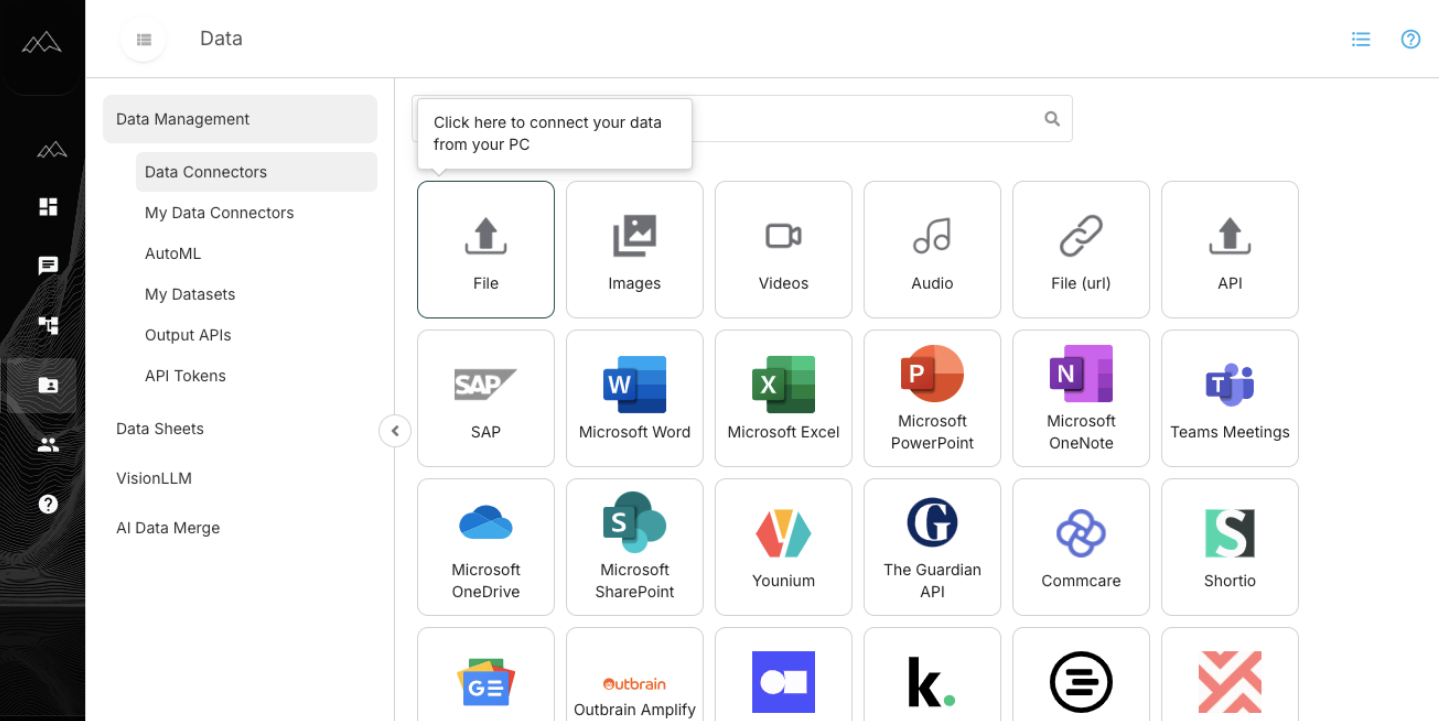
Purpose
Add or create datasets from different sources—including files, cloud storage, databases, URLs, or APIs.
When to Use
Whenever you want to bring new data into DataPeak.
How to Create a Dataset
Open Data Connectors.
Choose a connector type (Local File, Google Drive, Database, URL, API, etc.).
Follow the prompts: upload your file or enter connection details.
Name your dataset.
(Optional) Add a description.
Click Add or Create.
What Happens Next
Your new dataset appears in the Datasets tab.
5. My Data Connectors
Purpose
View or remove records created through external connectors.
Notes
Only files from cloud, database, URL, or API sources appear here.
Local file uploads appear under Datasets, not here.
What You Can Do
Review connector import records
Remove connector entries you no longer need
6. Datasets
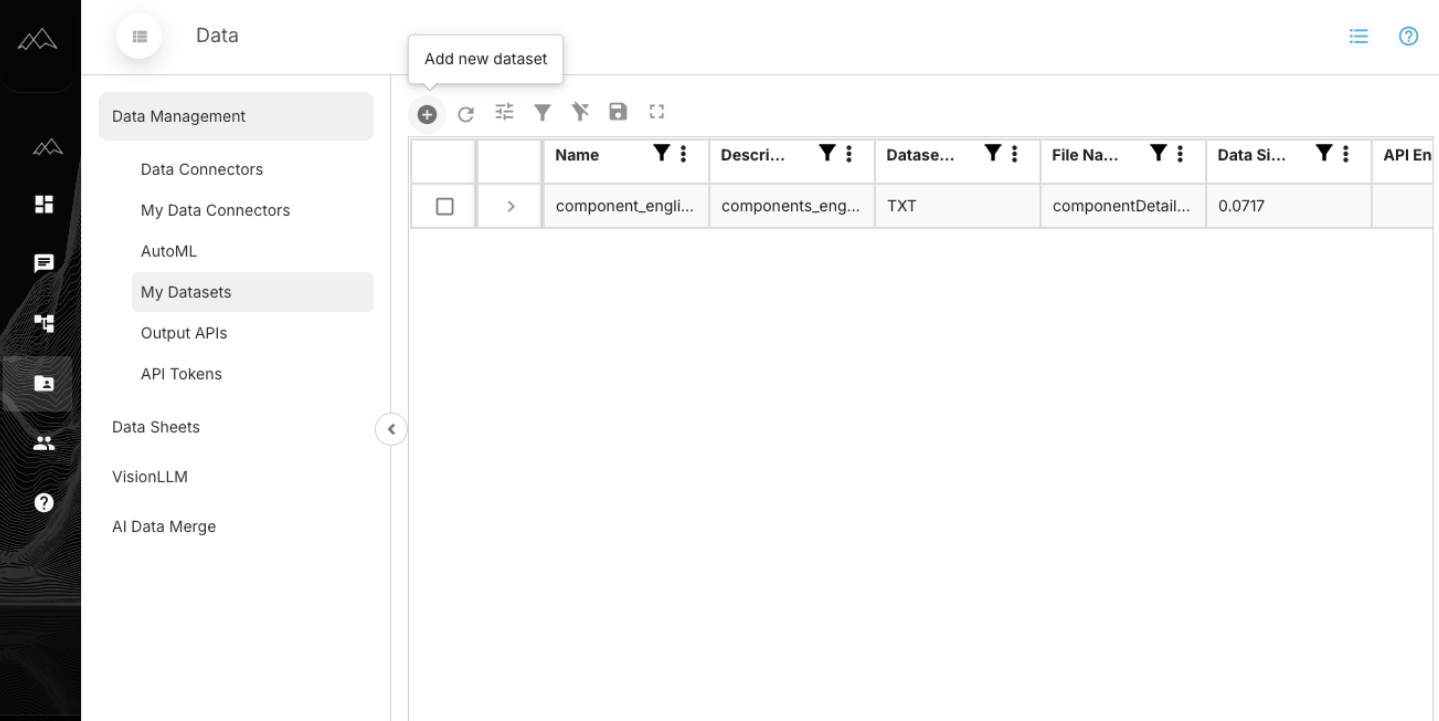
Purpose
Manage all datasets in your workspace, edit, view, activate, or delete them.
Common Actions
Add a new dataset (plus icon)
Refresh the dataset
Edit name or description
View Data
Deactivate or Reactivate
Delete
AI Data Cleaning
Create Output API (plug icon)
Download dataset
Assign Hierarchy
View versions (if the dataset has multiple versions from data sheets)
To Add a Dataset from Here
Click the plus icon, this will redirect you to Data Connectors to choose your upload method.
About Dataset Versions
Some datasets have multiple versions, often created from Data Sheets.
7. Output APIs
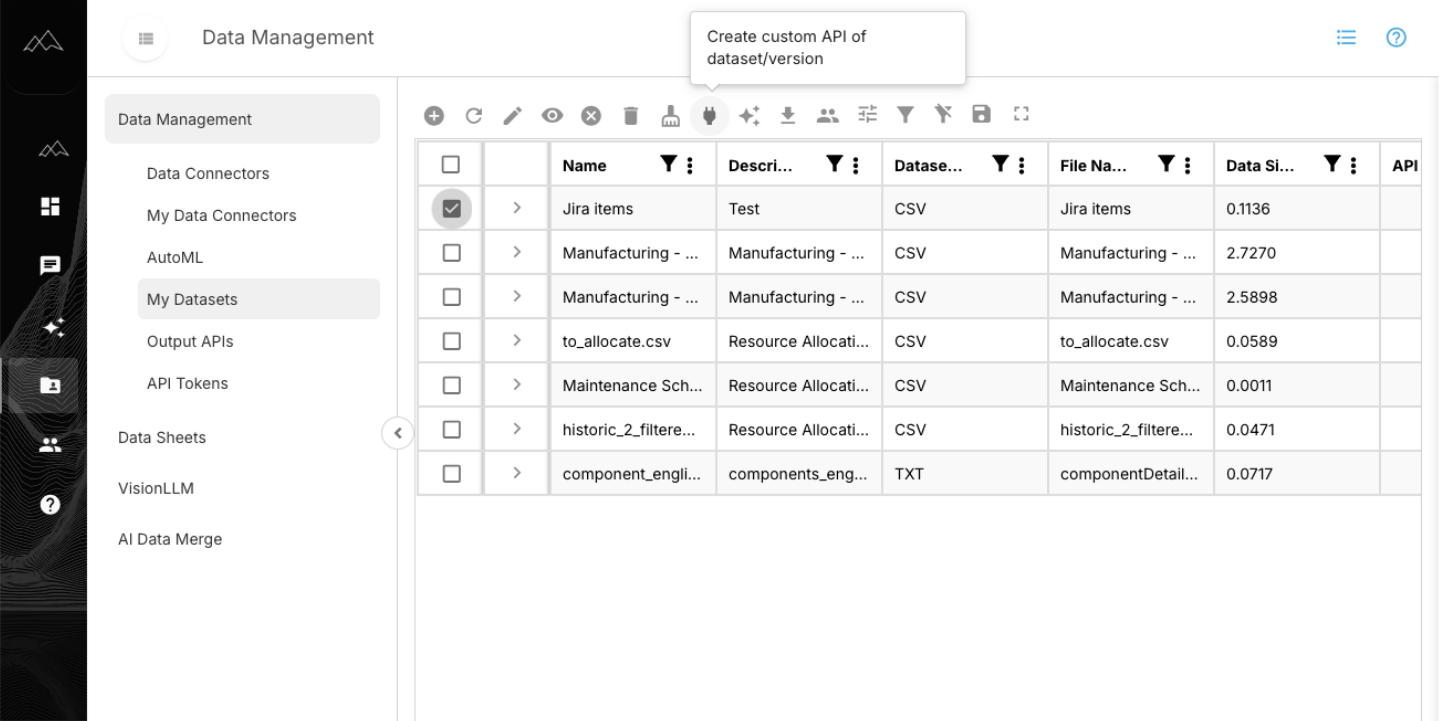
Purpose
Create secure API endpoints that external systems can call to retrieve your dataset.
How to Create an Output API
Go to Datasets.
Select the dataset.
Click the plug icon.
Enter an endpoint name and description.
Save.
Your new API appears in Output APIs.
What You Can Do from This Page
Preview API details
View request/response sections
Assign tokens
Deactivate/reactivate APIs
Delete endpoints
8. API Tokens
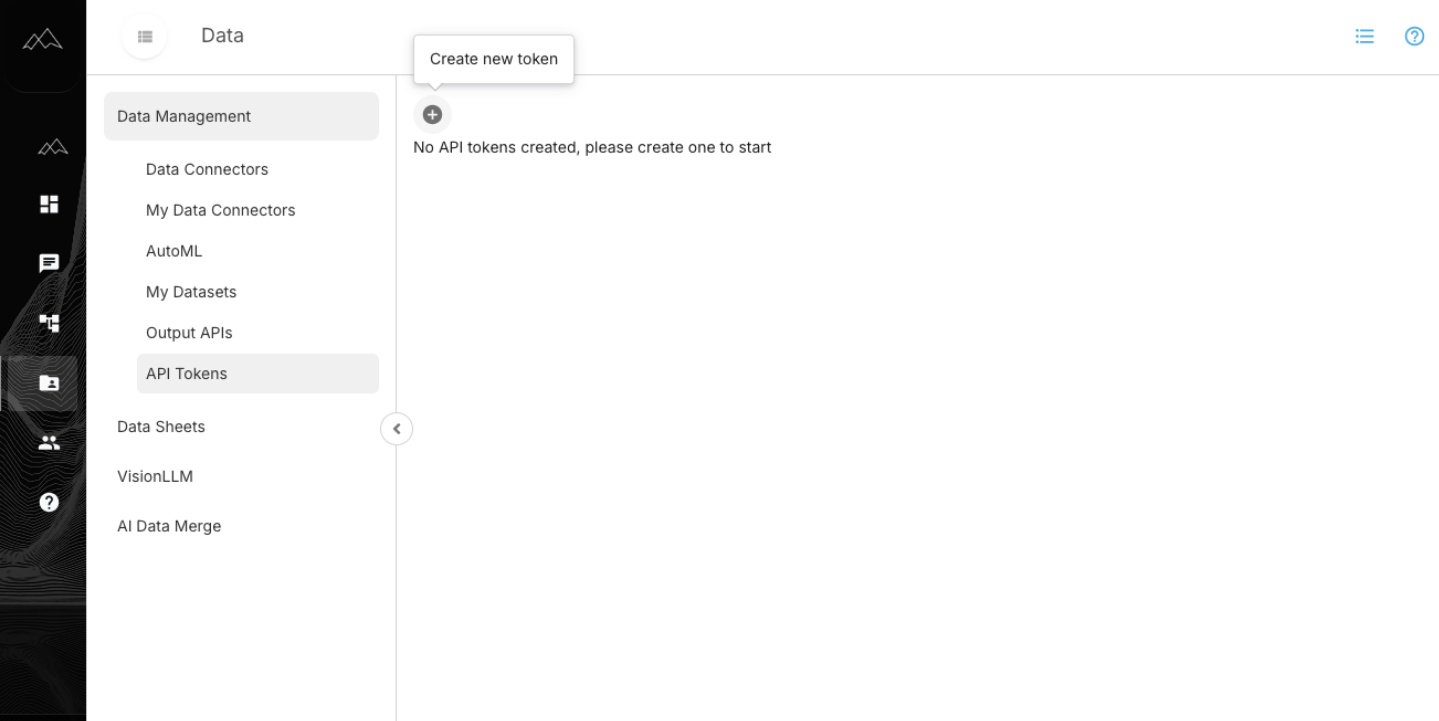
Purpose
Generate and manage the tokens that authenticate Output API requests.
How to Create a Token
Open API Tokens.
Click the plus icon.
Enter a name and description.
Save.
Copy the token key and store it securely.
Managing Tokens
Assign tokens to Output APIs
Delete or rotate tokens if needed
9. When to Use Data Management
Use this section when you need to:
Upload or create new datasets
Connect external data sources
Review or edit your datasets
Generate quick insights
AI Data Cleaning
Create Output APIs
Manage agent run history
Organize data sheets or AI merges