
How To Use DataPeak Settings
Manage your profile, subscription, tokens, notifications, add-ons, and system health, all in one place.
The Settings menu lets you customize your DataPeak experience, manage your account, install add-ons, and view important workspace details.
This guide walks you through each tab in the Settings panel so you know exactly where to find everything.
1. How to Access the Settings Menu
To open your Settings:
Click the three-dot menu beside your name in the bottom, left corner
Choose Settings
2. User Profile
This is the first page you'll see when you open Settings.
Here, you can:
Update Your Personal Details
First Name
Last Name
Your email is visible but cannot be changed for security reasons.
Change Your Password
Click Change Password to update your login credentials at any time.
Click Update when you’re done.
Choose Your Interface Language
Use the dropdown menu to set DataPeak’s display language.
3. Subscription
This tab shows your current plan and allows you to compare subscription options.
You will see two plan cards:
Business Plan
Designed for smaller teams and SMBs
Includes:
Connect external data sources with 100's of data connectors
Supports unstructured & structured data with no data size limits
8 LLMs included: OpenAI, Claude, Mistral, DataPeak, Deepseek, Llama, Amazon, Cohere
LLM token use dashboard
User pre-built agents or create custom multiple-mode agents to manage workflows & data
Instant insights & auto generated analytics for your data
Create secure output APIs to integrate to other systems
Extract data from PDF/Image sources into usable datasets
Create forms/data sheets customized to your organization and extract usable datasets from user input
Built in AI to merge data to a single dataset
Create & manage unlimited users with specific permissions based on your organizations hierarchy
50 AI usage tokens - extra tokens charged per token/month (based on LLM model consumption)
Enterprise Plan
Built for large-scale teams
Includes everything in Business, plus:
Unlimited use of AI to merge data files into a single dataset
Unlimited use of Multi-mode AI agents including all integrated LLMs
Free platform upgrades
Unlimited data interaction with AI chat
Unlimited use of DataPeak Assistant to build agents tailored to your organization
Unlimited running of custom AI agents with no token limits
Unlimited user account access
Unlimited data sizes & data connectors
Included maintenance and support packages
Included data security & backups
Incident, Problem Management & Disaster Recovery
Full SOC2, ISO28001, GDPR, Data Domicile, & Sovereignty Compliance
Enterprise Data Limits
Unlimited Users
Full dedicated access to the DataPeak team
Your active plan is marked with a blue checkmark.
Use this page to upgrade, downgrade, or review your plan features.
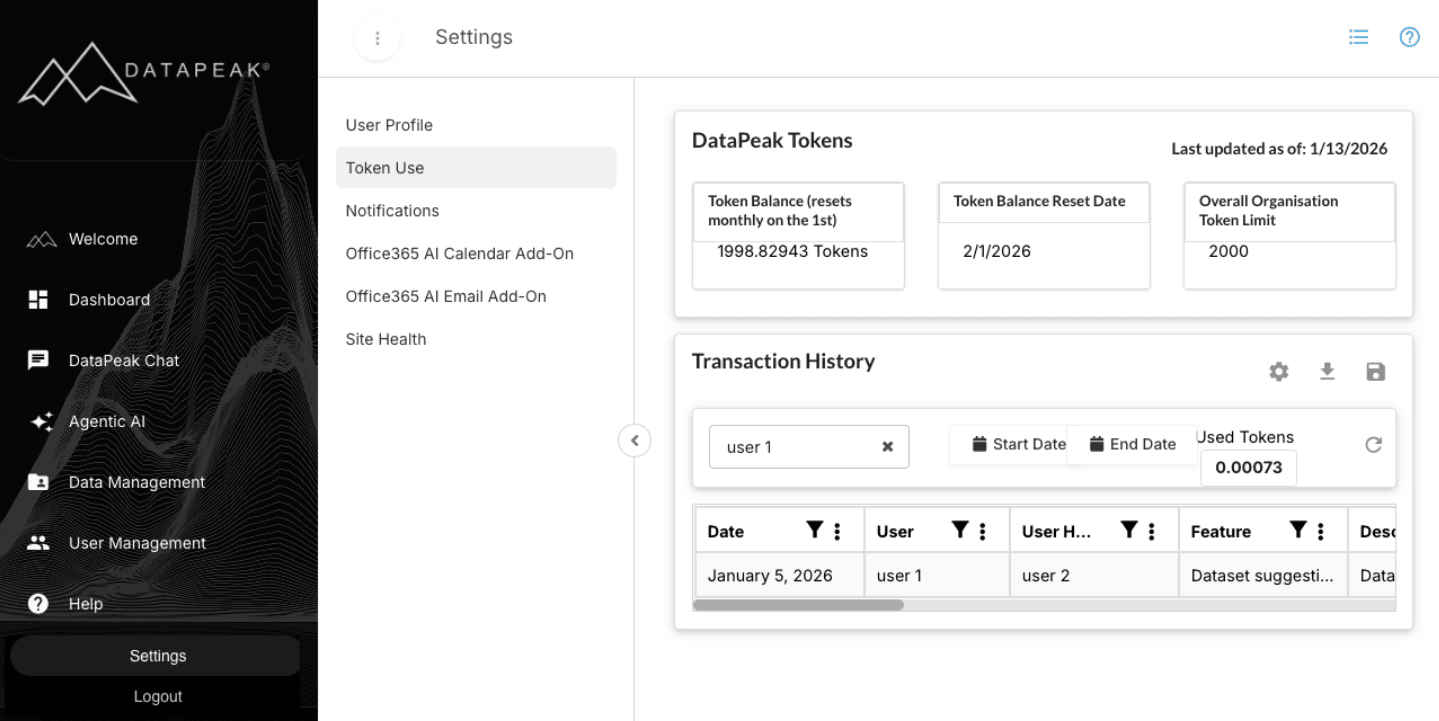
4. Token Use
This tab shows your organization’s use of AI tokens, which apply to certain LLM-powered features on the Business plan.
Enterprise users will still see this tab, though token limits typically do not apply.
What You Can View
Token Balance (resets monthly on the 1st)
Token History
Reset Date
Organization Token Limit
Transaction History
Filtering & Exporting
You can:
Filter by user
Choose a date range
Sort by feature or date
Download logs via the export icon
This is helpful for admins monitoring usage across a team.
5. Notifications Preferences
This tab controls how you receive notifications, not how notifications are created.
Available Preferences
Web notifications
Email notifications
Automatic notification deletion
Deletion period (e.g., 30 days, 60 days)
After adjusting your settings, click Update.
6. Office365 AI Calendar Add-On
This add-on integrates with Microsoft Outlook to help you schedule meetings automatically using AI-generated availability windows.
What the Wizard Covers
Downloading the manifest file
Installing the add-in through Outlook’s Custom Add-Ins
Refreshing Outlook
Launching the AI Scheduler sidebar
Signing into your DataPeak workspace
Once installed, the add-on can:
Analyze calendars
Suggest optimal meeting times
Generate invites
Send & receive scheduling updates
The wizard inside Settings walks you through all steps with screenshots.
7. Office365 AI Email Add-On
This add-on integrates with Outlook to help you summarize emails and generate AI-powered replies.
What the Wizard Covers
Downloading the manifest file
Installing in Outlook via Custom Add-Ins
Refreshing Outlook
Launching the Email Summarizer sidebar
Signing into DataPeak
Once installed, the add-on can:
Summarize long emails
Generate auto-replies in different tones
Draft suggested responses
Insert AI-generated text directly into your email
Send emails through Outlook normally
The wizard inside Settings walks you through all steps with screenshots.