
How To Reset Your Password
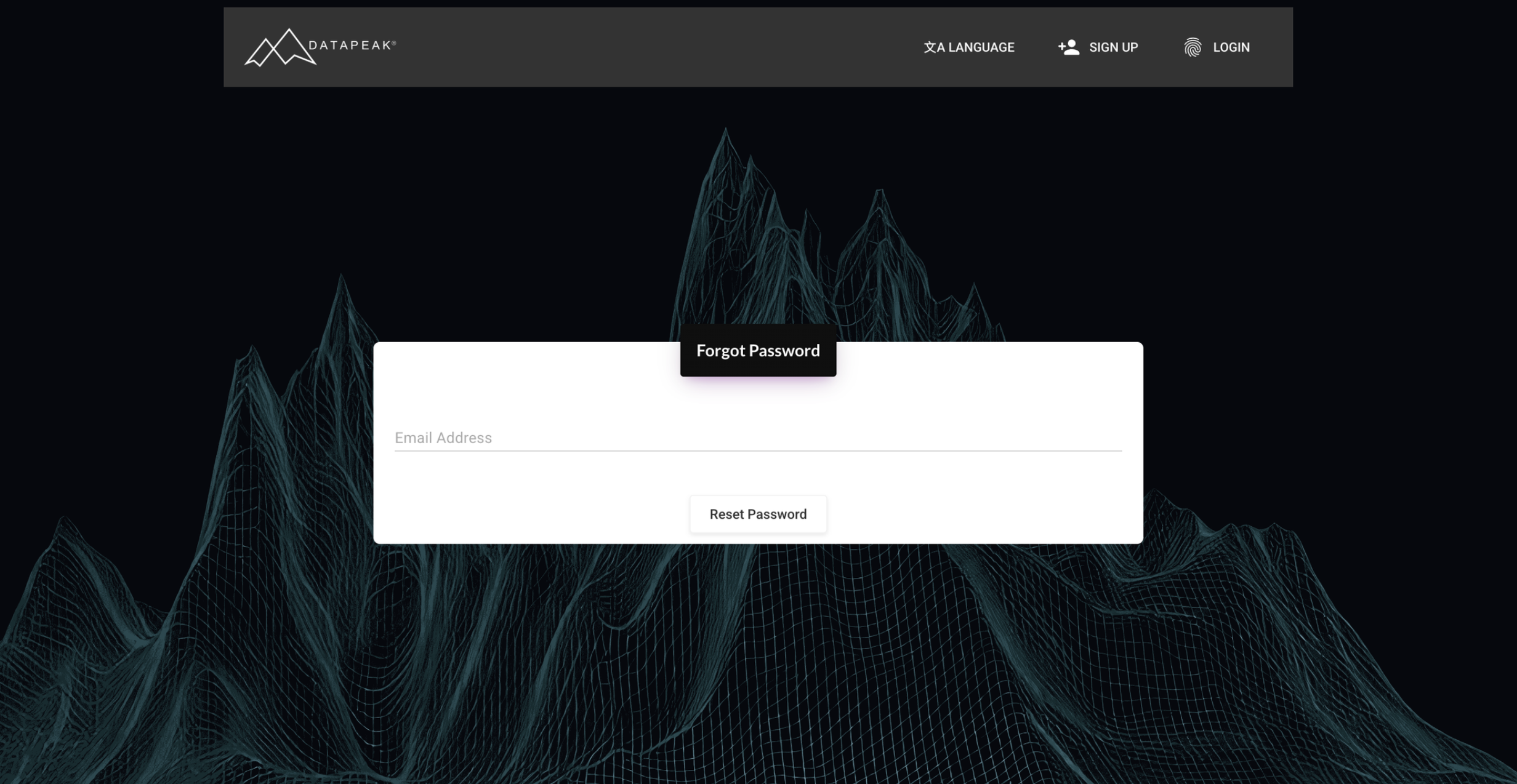
Quick steps to regain access to your DataPeak account.
If you forget your password or need to update it, DataPeak includes a simple, secure password reset process you can complete in just a few minutes.
1. Go to the Login Page
Visit the DataPeak login screen:
https://beta.datapeak.me/registration (Log In is at the top)
Click Forgot Password? underneath the login form.
2. Enter Your Email Address
You will be taken to the Password Reset page.
Enter the email address associated with your DataPeak account
Click Submit
You’ll see an on-screen confirmation letting you know that a reset link has been sent.
3. Check Your Inbox
Look for an email titled:
“DataPeak Password Reset”
If you don’t see it:
Check your spam or junk folder
Search for “DataPeak” in your inbox
Wait 1–2 minutes, delivery times may vary
Click the Reset Password button inside the email.
4. Create a New Password
You will be taken to the secure password reset page.
Enter your new password, ensuring it meets the system requirements:
Password Requirements
Minimum of 8 characters
Must include at least one of the following special characters:
@ $ ! % * # ? &Should include a mix of uppercase, lowercase, numbers, and special characters
Enter your new password twice to confirm.
Click Save or Reset Password.
5. Log In With Your New Password
Once your password has been successfully updated, return to the login page and sign in using your new credentials.
Your workspace, datasets, agents, and dashboard will all load normally.
Need Additional Help?
If you run into trouble during the password reset process:
Use the Help Menu
Click Help in the left-hand sidebar inside DataPeak (once logged in).
Contact Support
You can email us anytime at:
hello@datapeak.me
Enterprise users can also submit support tickets through Settings → Help for priority assistance.