
How To Use DataPeak VisionLLM
Extract structured data from PDFs, images, and documents.
VisionLLM allows you to take unstructured files, such as PDFs, scanned documents, images, or reports, and convert them into clean, editable tables that can be saved as datasets. You can edit the extracted data, apply prompt-based updates, and then use the final table across dashboards, analytics, Chat, and agents.
Admins and Sub Admins can fully manage VisionLLM.
Business Users can work with the datasets created from VisionLLM.
1. How to Open VisionLLM
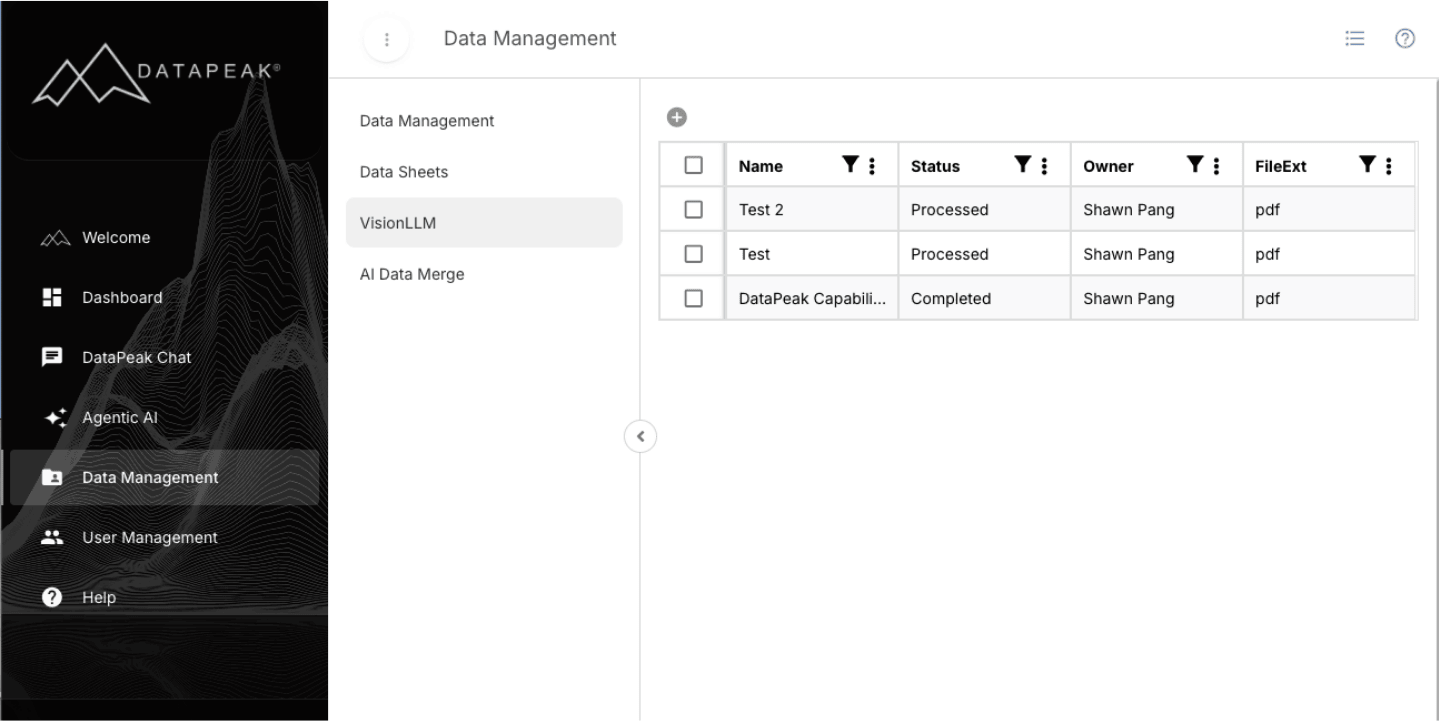
Sign in to DataPeak.
Click Data Management in the left sidebar.
Select VisionLLM from the tabs.
This opens the VisionLLM workspace, where you can upload files and begin extraction.
2. Upload Files for Extraction
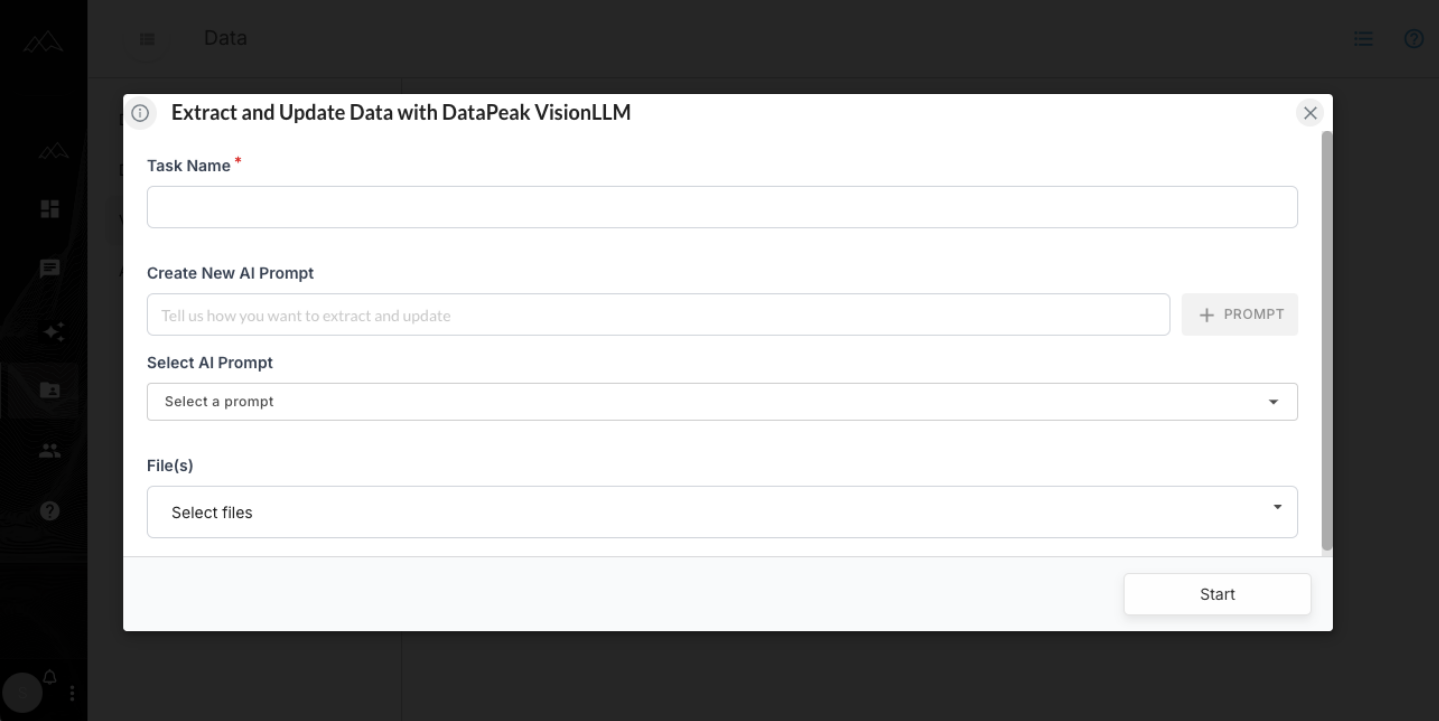
VisionLLM supports multiple file formats, including:
PDFs
Images (PNG, JPG, JPEG)
Other common document formats
Steps to upload:
Click the + to create a new task and select files for upload.
Add one or multiple files, the system supports multi-file extraction.
After upload, the files will appear in a list, ready for processing.
Tip:
Upload all files you want included before extraction.
3. Extract Structured Data (JSON Extraction)
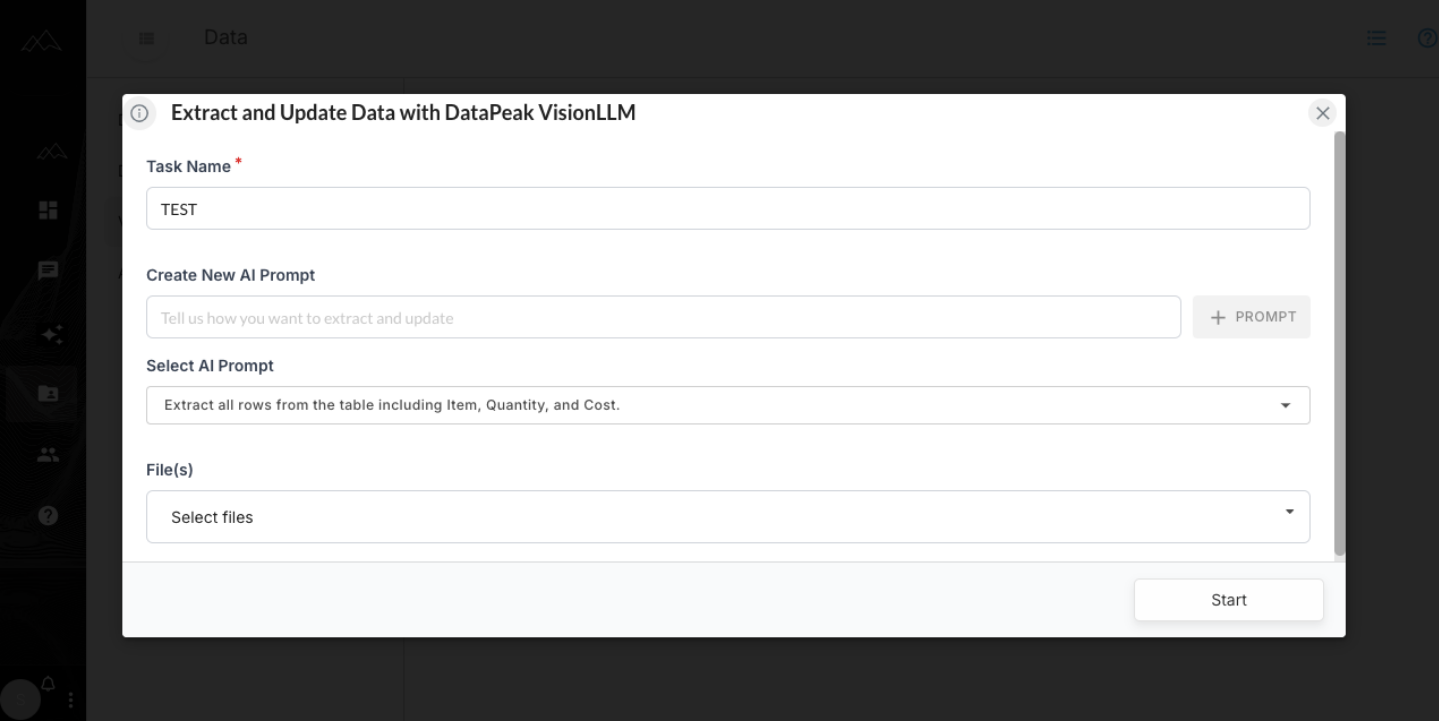
After files are uploaded, VisionLLM uses prompt-based extraction to convert unstructured documents into structured JSON.
Steps:
Enter a prompt describing what information you want extracted.
Example: “Extract all rows from the table including Item, Quantity, and Cost.”
Click Start.
VisionLLM analyzes each file and returns structured JSON.
Review the extracted JSON in the preview panel.
Notes:
The clearer your prompt, the more accurate the extraction.
JSON is shown first before it’s turned into a table.
4. Work in the Table View
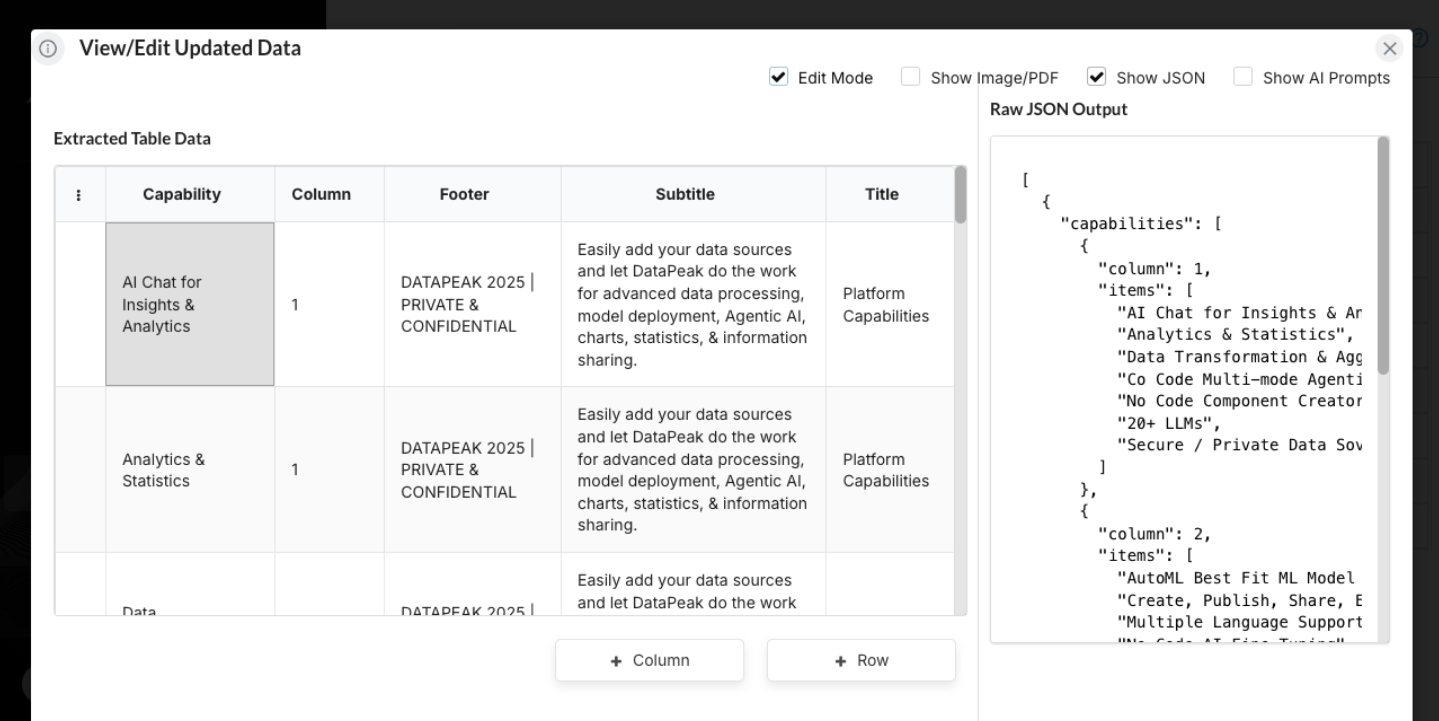
Once JSON is extracted, VisionLLM automatically converts it into an editable table.
What you can do in the table:
Edit cell values
Add rows
Add columns
Delete rows or columns
Correct formatting
Reorganize data
Modified cells are highlighted, so you can track exactly what changed.
5. Use Prompt-Based Updates
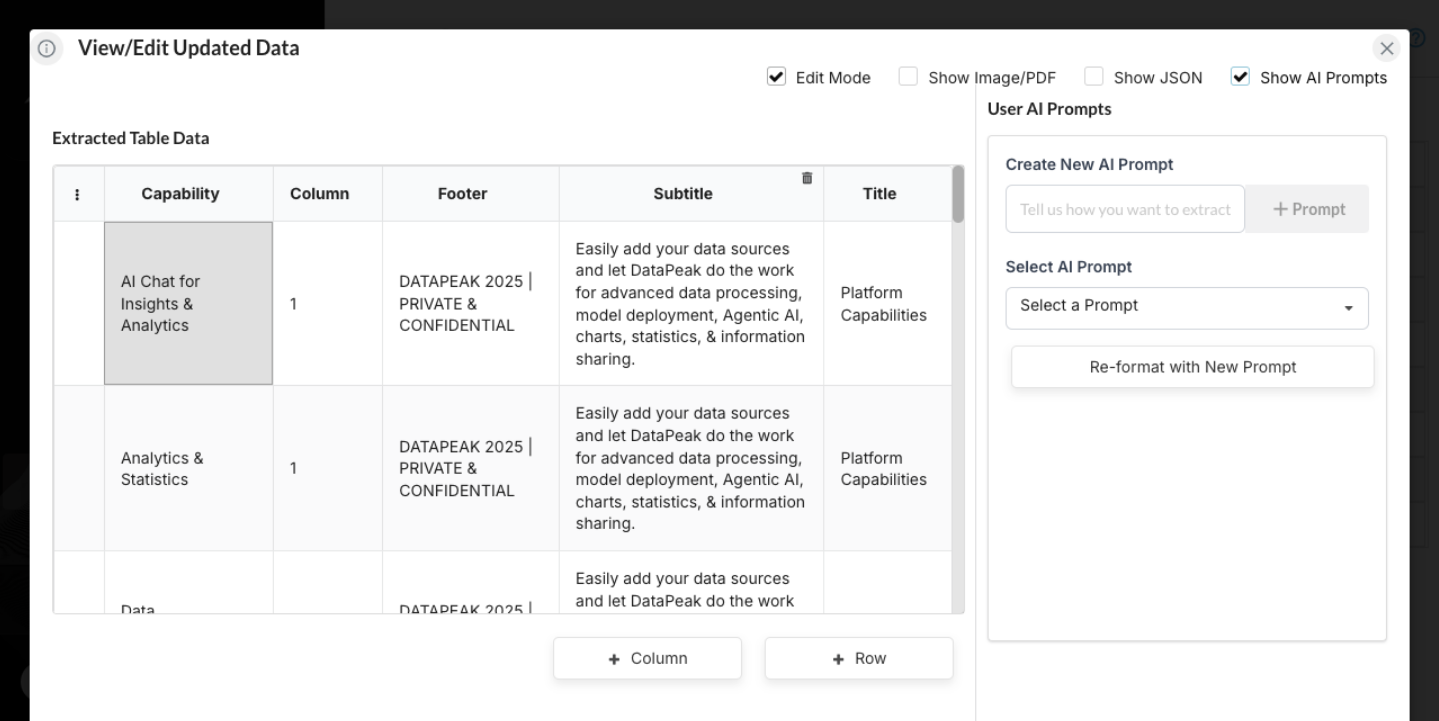
You can apply transformations or corrections to the table using natural language prompts.
Steps:
Type a prompt describing the change you want.
VisionLLM updates the table automatically.
Highlighting indicates which cells were modified.
Examples:
“Standardize dates to YYYY-MM-DD.”
“Remove empty rows.”
“Add a column calculating total cost.”
“Clean all formatting.”
This makes large edits fast and consistent.
6. Save the Table as a Dataset
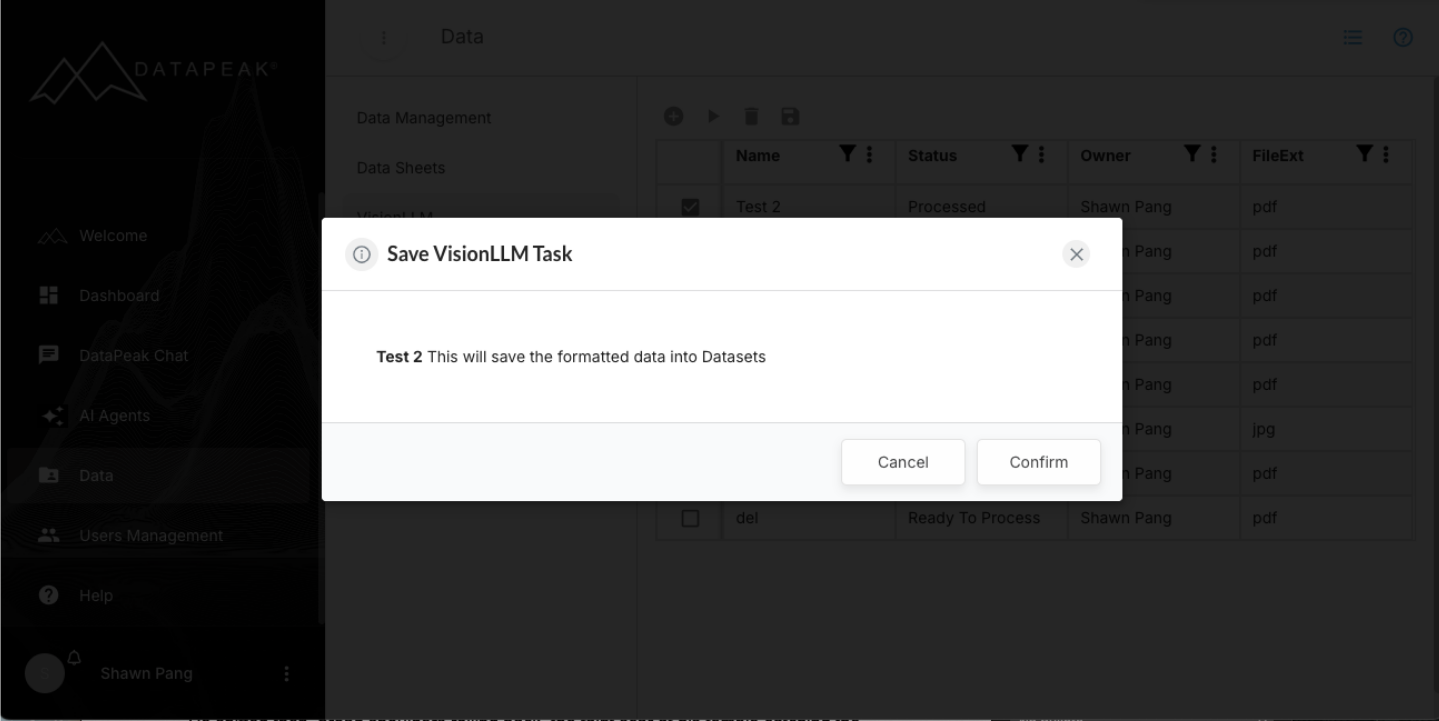
Once everything looks correct:
Steps:
Click Save.
VisionLLM converts the table into CSV format.
The CSV is stored under Datasets in Data Management.
After saving, your extracted data becomes a full dataset you can use with:
DataPeak Chat
Dashboards
Agents
Output APIs
Your dataset behaves exactly like any other dataset in DataPeak.
7. Chat With Your Extracted Data
After saving your VisionLLM output as a dataset, you can explore it using DataPeak Chat.
Examples:
“Show the top 5 highest values.”
“Summarize the trends in this dataset.”
“Identify outliers in Column B.”
“Create a chart of values by category.”
This makes it easy to analyze extracted documents without rebuilding the data manually.
8. When to Use VisionLLM
VisionLLM is ideal for turning static or messy files into usable, structured data, such as
Business Operations:
Extract numbers or tables from PDF reports.
Research & Documentation:
Turn scanned notes, articles, or forms into clean rows and columns.
Team Collaboration:
Create editable tables that multiple team members can refine.
Workflow Automation:
Use prompt-based updates to clean or restructure data quickly before analysis.