
How To Use DataPeak AI Data Merge
Combine datasets using Consolidation Merge or Contextual Merge.
AI Data Merge allows you to combine multiple files into a single dataset using two merge types:
Consolidation Merge — append rows and columns
Contextual Merge — align datasets by a shared column
Use this feature when you need a unified dataset for dashboards, analytics, or agent workflows.
Only Admins and Sub Admins can perform merges.
1. How to Open AI Data Merge
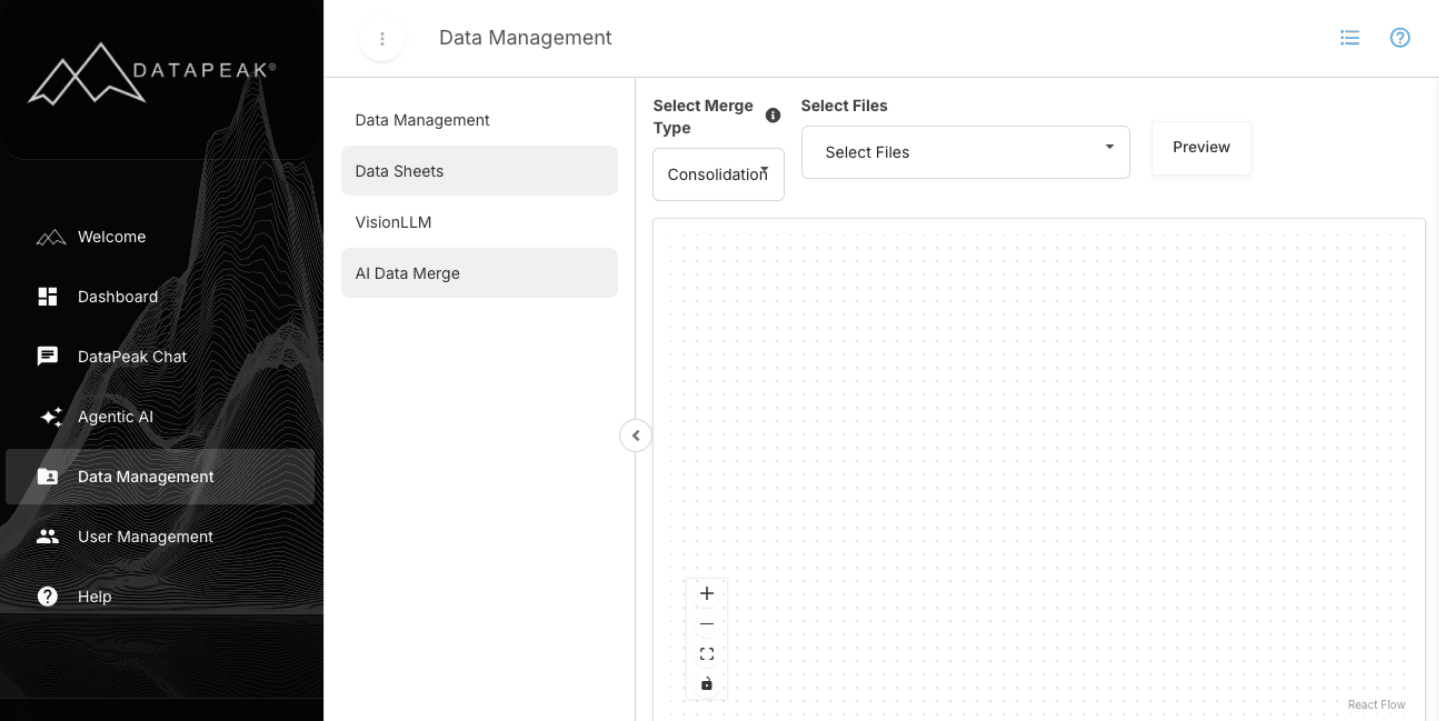
Sign in to DataPeak.
Click Data Management in the left sidebar.
Select AI Data Merge.
You’ll see options to begin a Consolidation Merge or a Contextual Merge.
2. Merge Type Overview
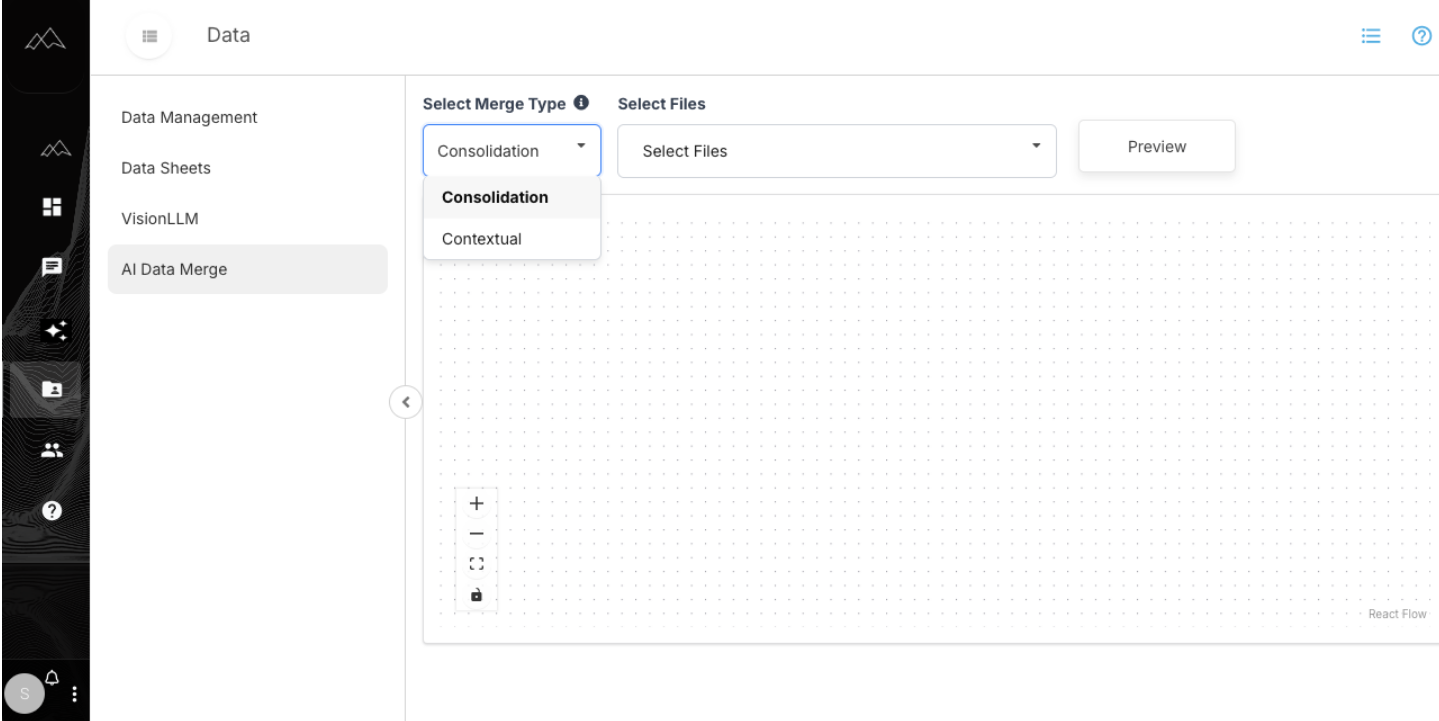
Consolidation Merge (Append)
Combines all rows and columns from multiple files
Optional: choose shared column(s) to link files together
Unmatched columns are appended to the output
Use when:
Your files share similar structure or when you simply need everything combined.
Contextual Merge (Align)
Requires all files to share at least one common column
Merges rows based on that shared column
Output aligns all matching rows across the selected files
Use when:
You need rows to line up based on a key such as ID, product number, employee name, location, etc.
3. How to Create a Consolidation Merge
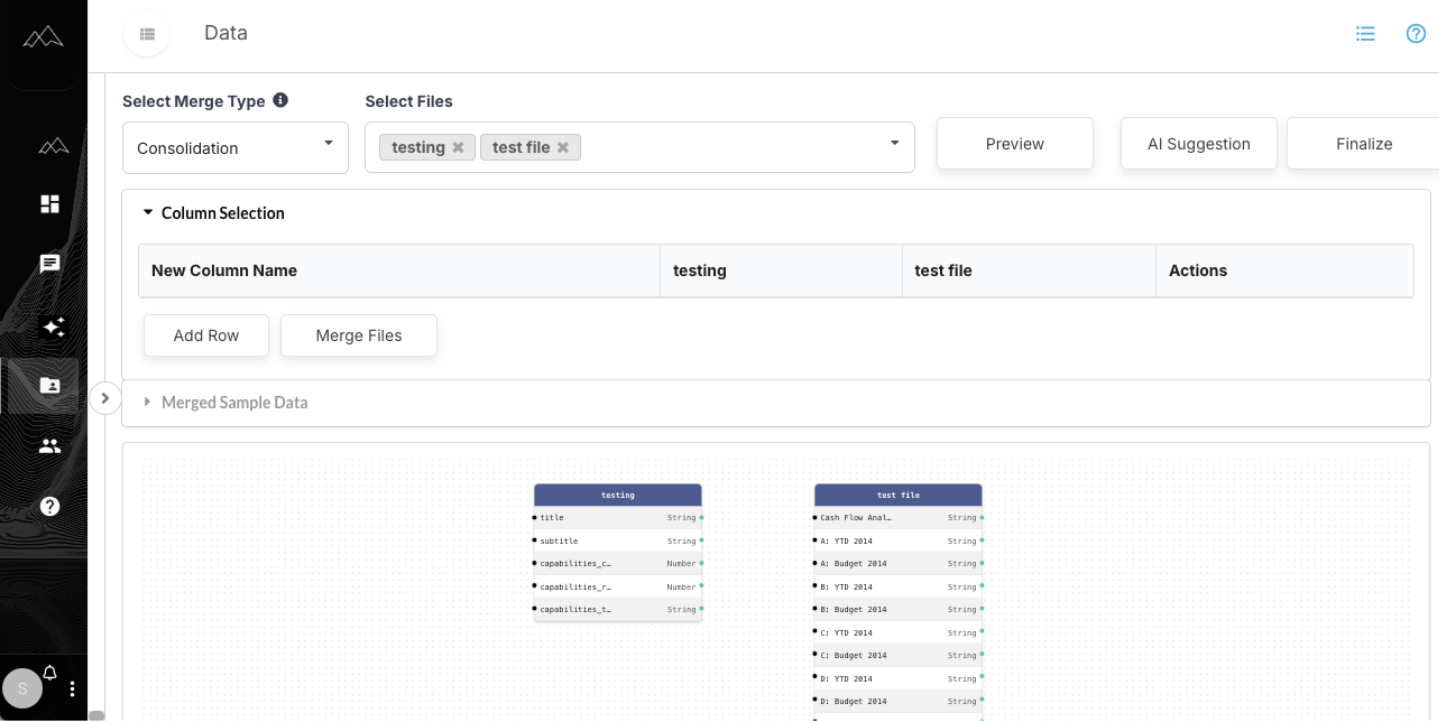
Open AI Data Merge.
Select Consolidation Merge.
Choose the files you want to merge.
(Optional) Select shared column(s)
Helps align related columns across files
Example shared keys: ID, product number, employee name
Preview the appended dataset.
Click Finalize.
Enter a name for the merged dataset.
The result is saved under Datasets.
4. How to Create a Contextual Merge
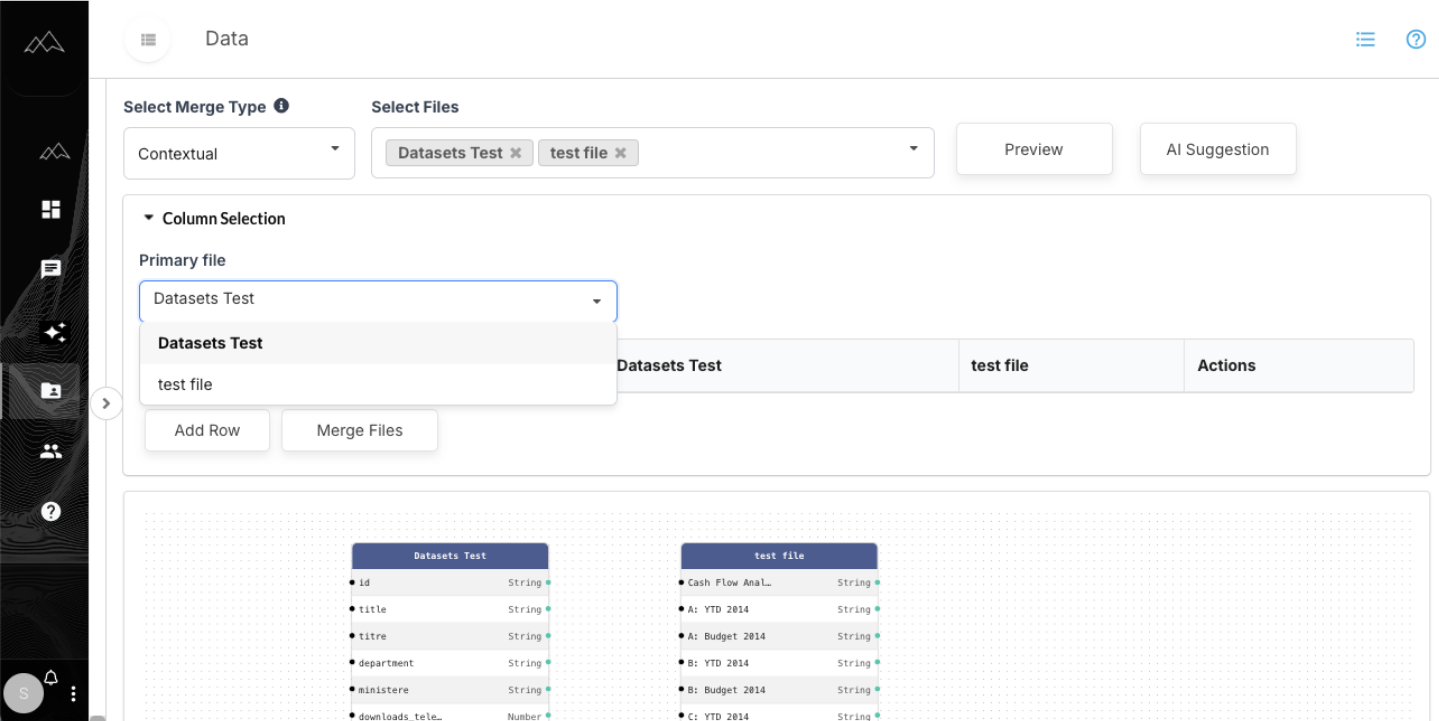
Open AI Data Merge.
Select Contextual Merge.
Choose a primary file.
Select the shared column that all files must contain.
Preview the aligned rows.
Click Finalize.
Enter a name for the merged dataset.
Find the new dataset under Datasets.
5. After the Merge
Your merged dataset can now be used for:
Dashboards
Auto Analytics
Advanced Graphs
Agent workflows
Data exploration in Chat
All merged outputs appear in Data → Datasets.
6. When to Use AI Data Merge
Use this feature when you need to:
Combine several files into one table
Align datasets by ID or another shared key
Prepare data for forecasting, analytics, or automation
Consolidate multiple submissions or form outputs