
How To Use DataPeak Data Sheets
Create, publish, fill, and validate structured forms that become datasets.
Data Sheets let you design structured forms for users to fill out. When submitted, each form entry becomes structured data that can be validated, versioned, and ultimately consolidated into datasets.
Admins and Sub Admins create templates and manage updates.
Business Users can only fill out published Data Sheets.
1. Understanding Data Sheets
Data Sheets have two parts:
1. Data Sheet Templates
Where Admins/Sub Admins create, edit, and publish the form templates.
2. Data Sheet Template Data
Where users fill in the published forms, and Admins/Sub Admins review, track changes, validate, and consolidate submissions.
This guide walks through both.
2. How to Open Data Sheets
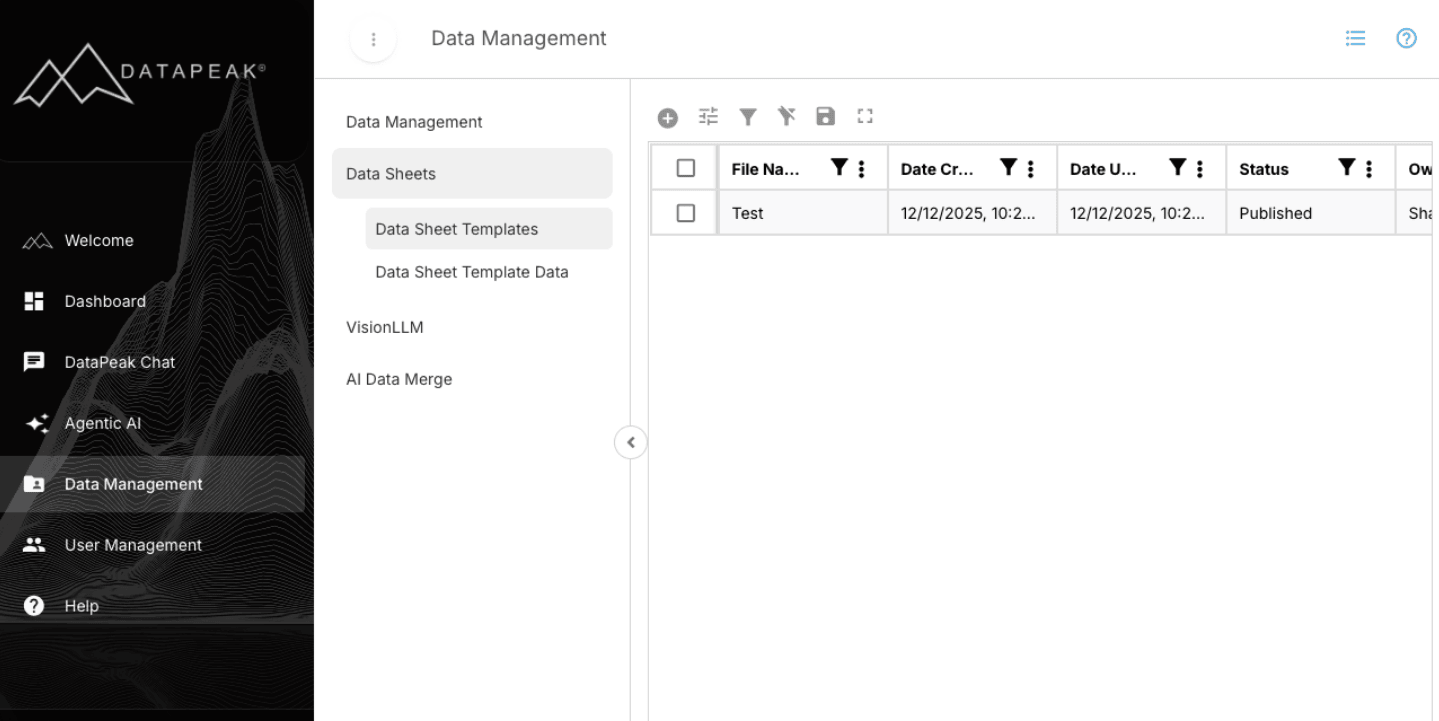
Sign in to DataPeak.
Click Data Management in the left sidebar.
Select Data Sheets.
You’ll see two tabs:
Data Sheet Templates
Data Sheet Template Data
3. Creating a Data Sheet Template
(Admin/Sub Admin Only)
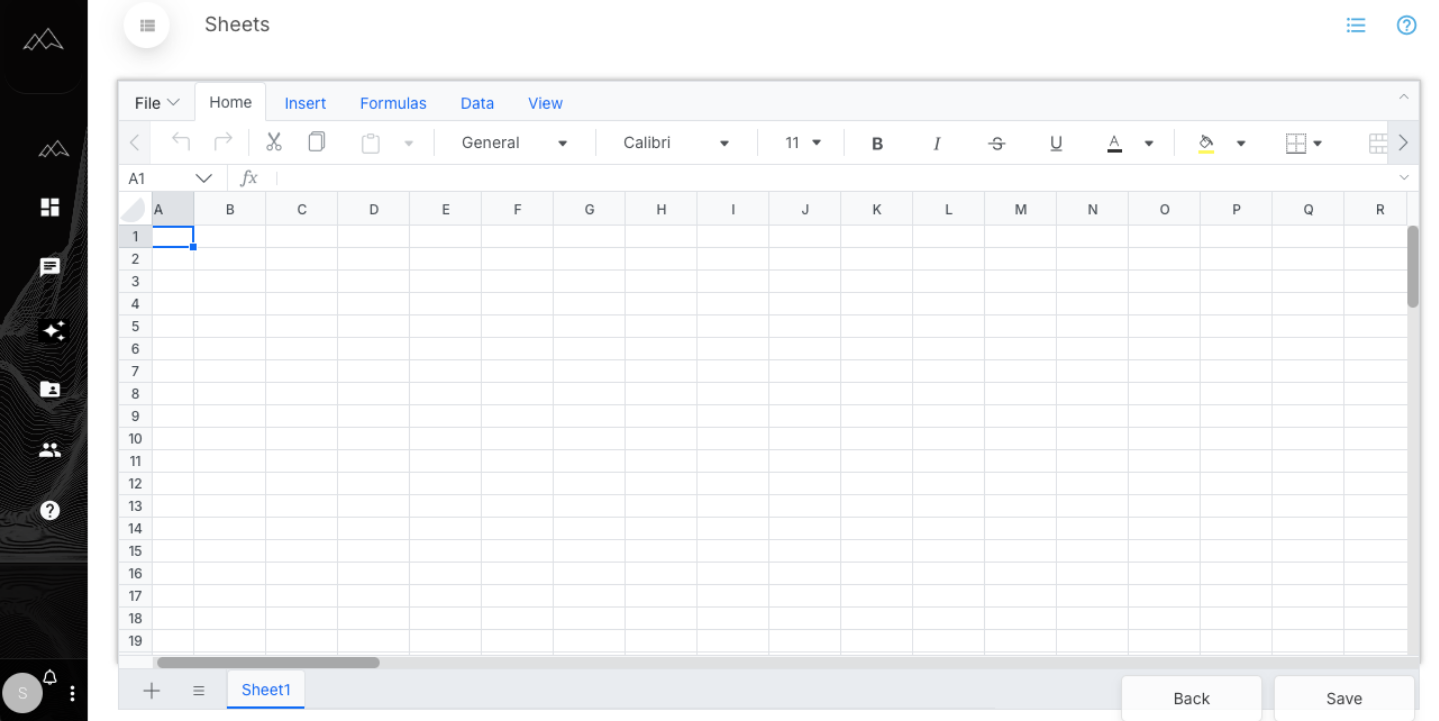
Open Data Sheet Templates.
Click the Plus (+) icon to create a new template.
This opens a spreadsheet-style editor.Build your form by entering column names and any required structure.
Example: Work Order Number, Date, Technician, Description
When the form is complete:
Give the template a name
Save it in the list
Select your saved template in the table.
Click Publish.
⚠ Important
Once a template is published, it can’t be unpublished.
If you need to update it later, you must:
Clone the template
Make edits
Publish the new version
This ensures that all published versions maintain historical integrity.
4. Managing Template Options
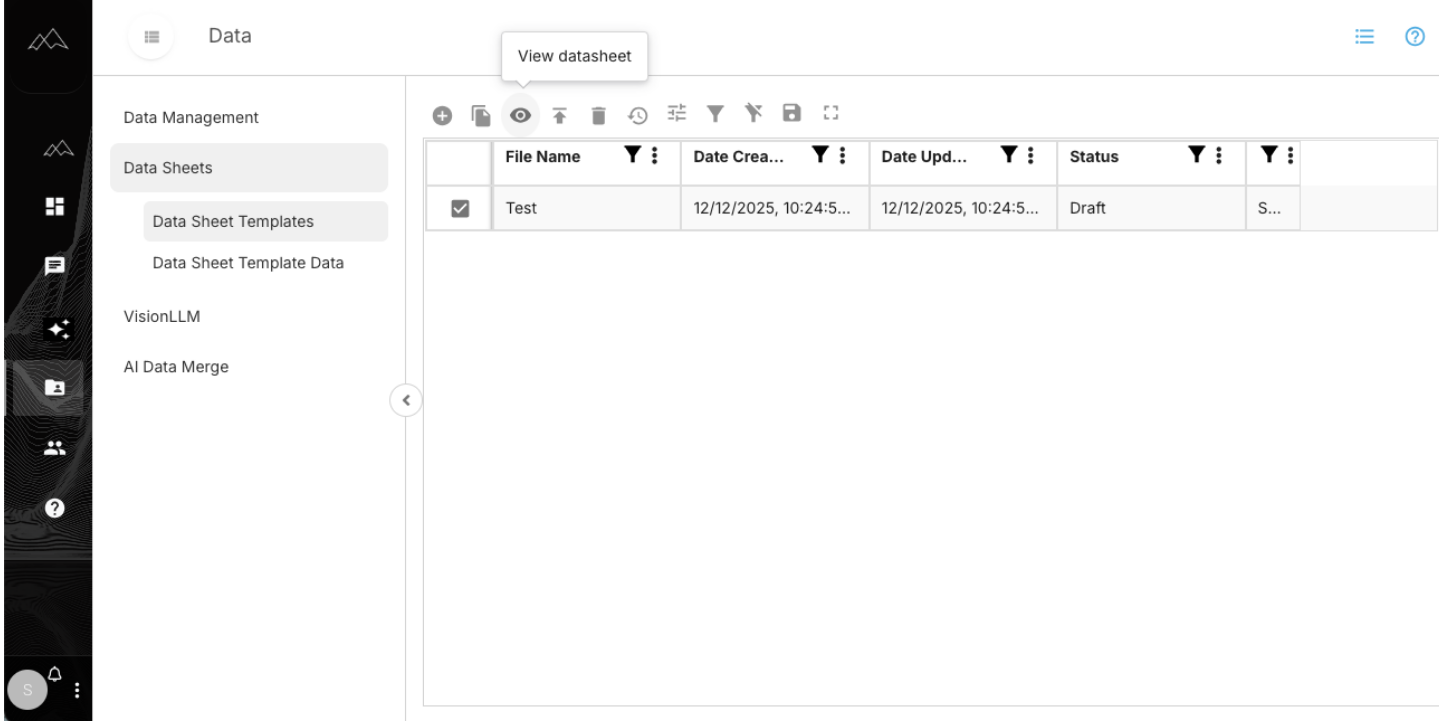
When viewing a Data Sheet Template, you can:
View Form — preview the published sheet
View Changes — see historical edits
Delete — remove an unpublished template
Published templates remain visible; historical records remain intact.
5. Filling Out a Data Sheet
(Business User or Admin)
Once a template is published:
Users with permissions will see Data Sheets in their left sidebar.
Open Data Sheet Template Data.
Select the published template you want to complete.
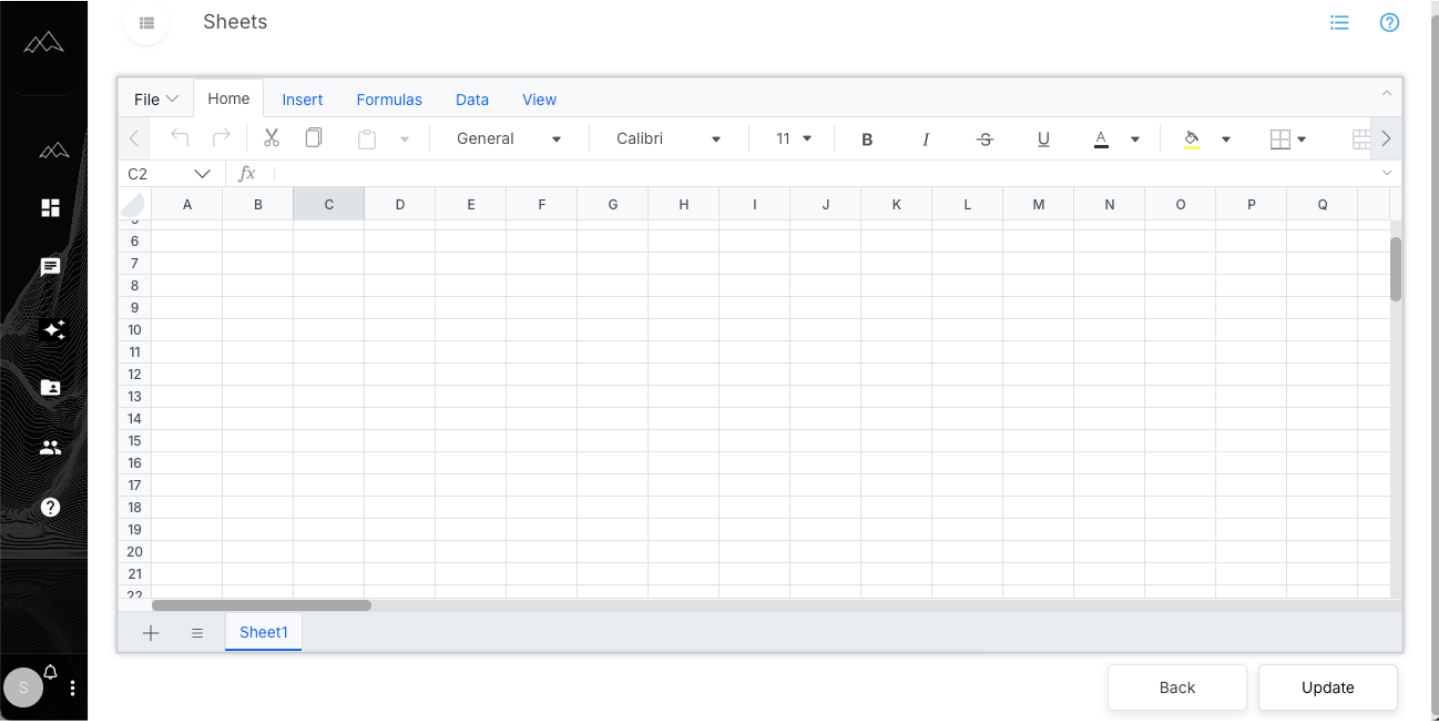
Click View Datasheet icon to open the form.
Enter the required values.
Click Update to save the entry.
Every submission is stored and tracked individually.
6. Reviewing and Validating Form Entries
(Admin/Sub Admin Only)
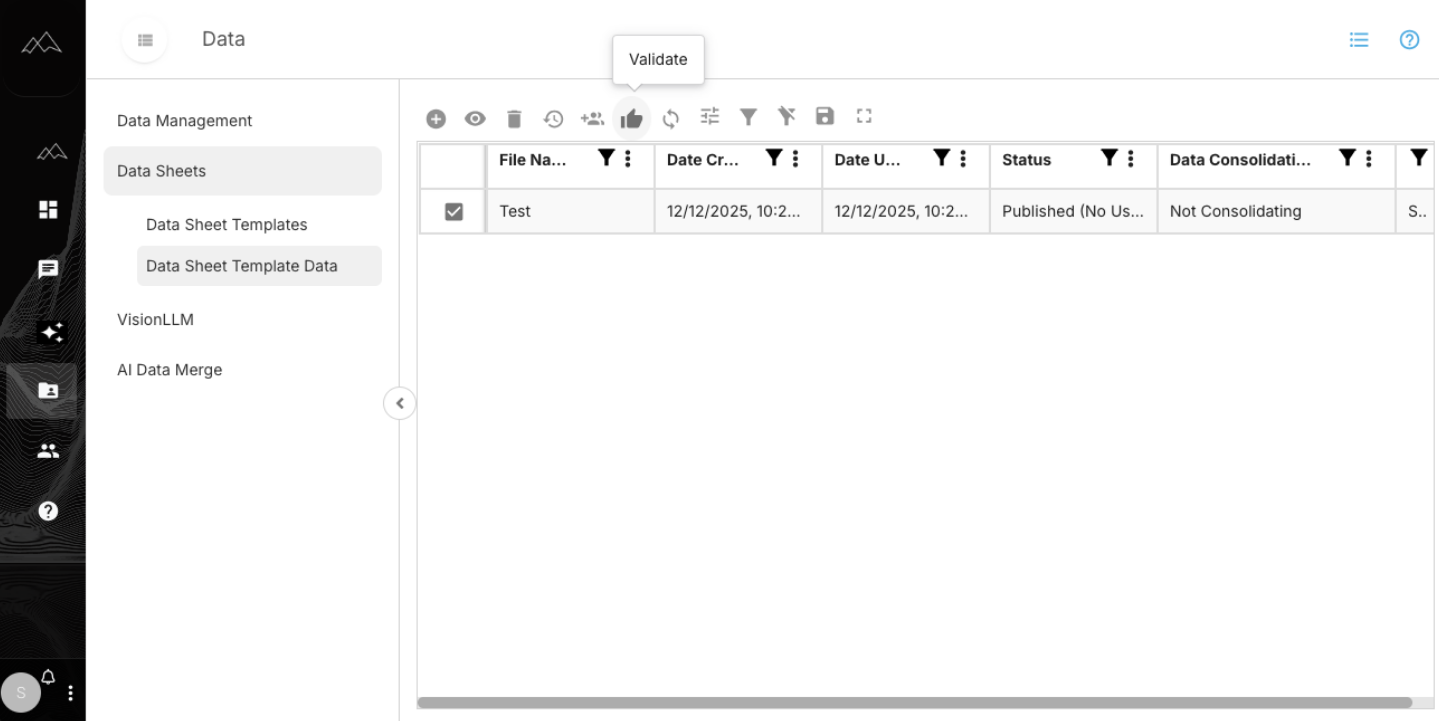
After users submit entries:
Go to Data Sheet Template Data.
Select the template.
Click View Changes.
You’ll see a historical list of all modifications made to the form, including:
Who submitted
What values were changed
When the changes were made
To validate:
Review the submitted entry.
Click Validate.
✔ This confirms the entry as reviewed
✔ A validation record is logged in the history
7. Consolidating Forms
(Admin/Sub Admin Only)
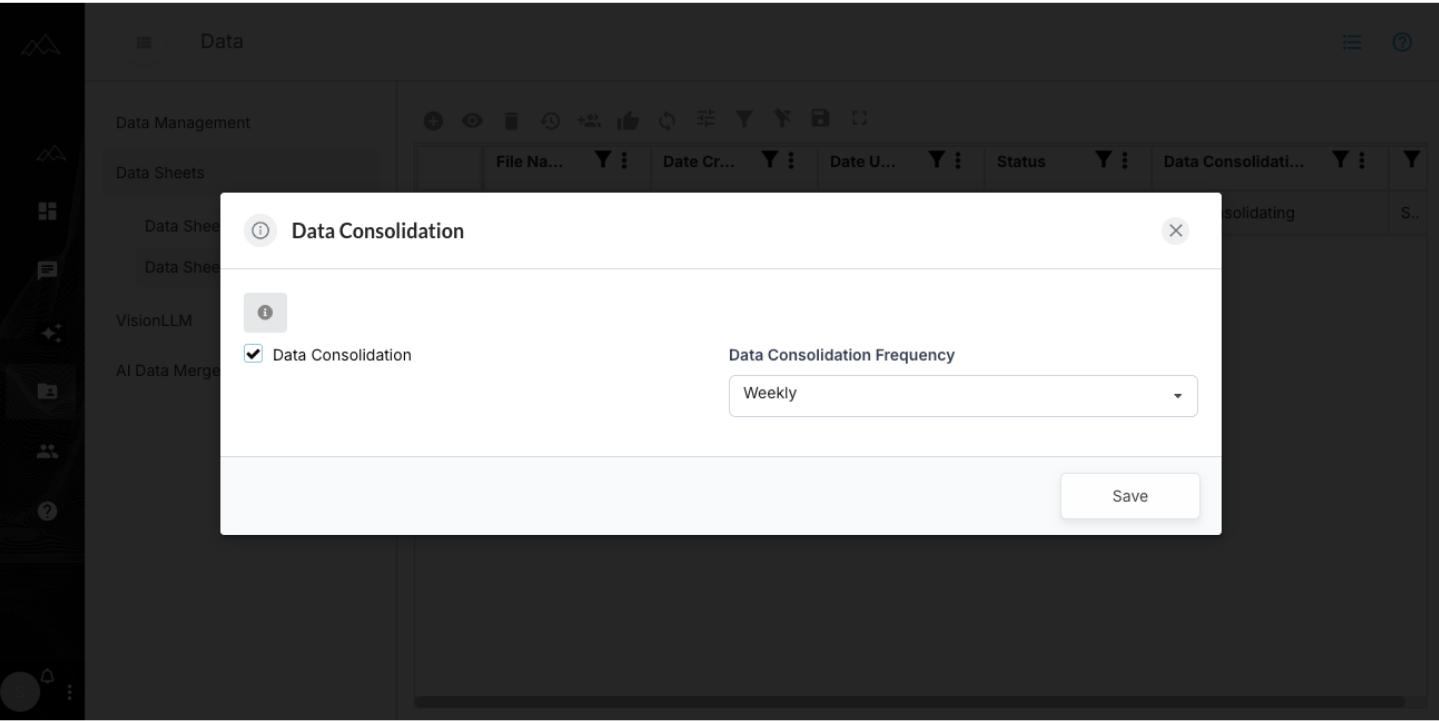
Admins can optionally consolidate validated forms.
Consolidation creates a unified record (dataset-like output) that can:
Keep the full history
Update automatically on a schedule (if enabled)
Serve as a single, clean output of all form submissions
This is useful when multiple users are contributing to the same form.
8. What Data Sheets Are Used For
Data Sheets are ideal when your organization needs:
Standardized input forms
Reusable templates
Controlled user submissions
Validation and historical tracking
Consolidated structured data for analytics or agents
Typical use cases include:
Work orders
Inspection forms
Checklists
Incident reports
Quality control sheets
Intake and submission forms